Booking and moving a lesson
How a lesson gets its time: a student books with a teacher, a teacher proposes a lesson to a student, and the other side agrees, declines or says “not then — then”. Also here: how to move or cancel a lesson, and what happens across time zones.
Where to book
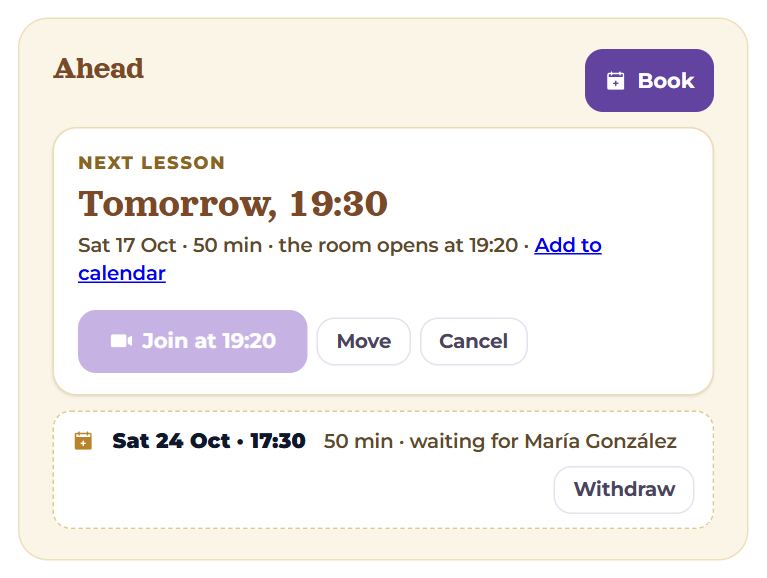
- The pair’s page (Lessons → a teacher or Students → a student): the “Ahead” block with the “Book” button for a student or “Propose a lesson” for a teacher.
- The schedule: the button at the top right — “Book” for a student, “Lesson” for a teacher; it first asks “A lesson with whom?”. In the “Week” view, tapping an empty half-hour is enough; in “List” a teacher can tap a “free:” window under a day.
- The teacher’s card in the catalogue (/t/…) — for a student already linked with that teacher.
The same dialog opens to move a lesson or to suggest another time for someone else’s request — the question is always the same: when.
The booking dialog
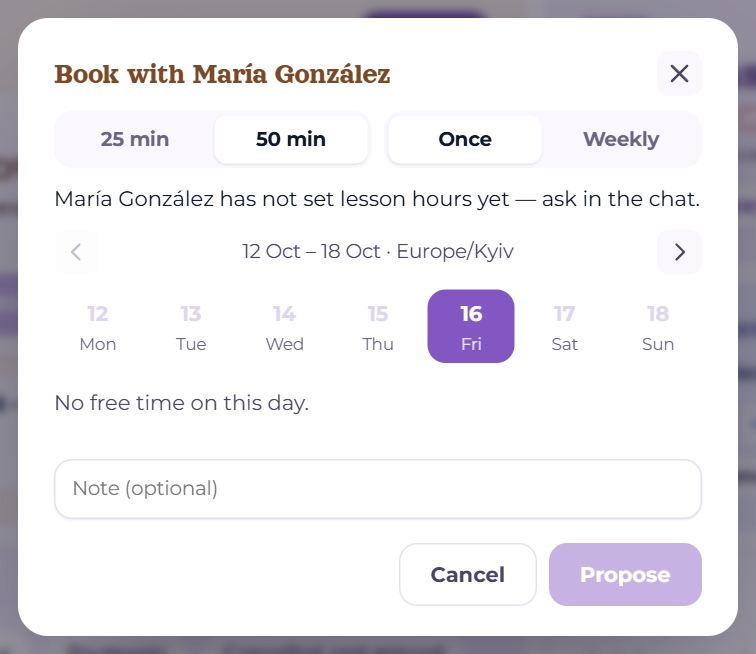
The title says what is going on: “Book with María”, “Propose a lesson to Olya”, “Move the lesson” or “Suggest another time”.
- Length: 25 or 50 min. It starts on the one the teacher set as default in their rules.
- 10 min · intro — the intro lesson: offered only to a student booking for the first time, and only when the teacher offers a free intro on their card. Free, once per pair, never weekly, never counted. A line explains it under the switch: “An intro lesson: 10 minutes, free, once. Talk about goals and level — and decide whether to go on.”.
- “Once” / “Weekly” — for a new lesson only (not the intro). “Weekly” proposes a series: the first lesson and then the same day and hour every week.
- If the teacher has not set lesson hours yet, the student sees a warning: “María González has not set lesson hours yet — ask in the chat.” — there is no free time on any day then.
To close the dialog: the cross, “Cancel”, a click outside it, or Esc. Nothing is sent until the button at the bottom is pressed.
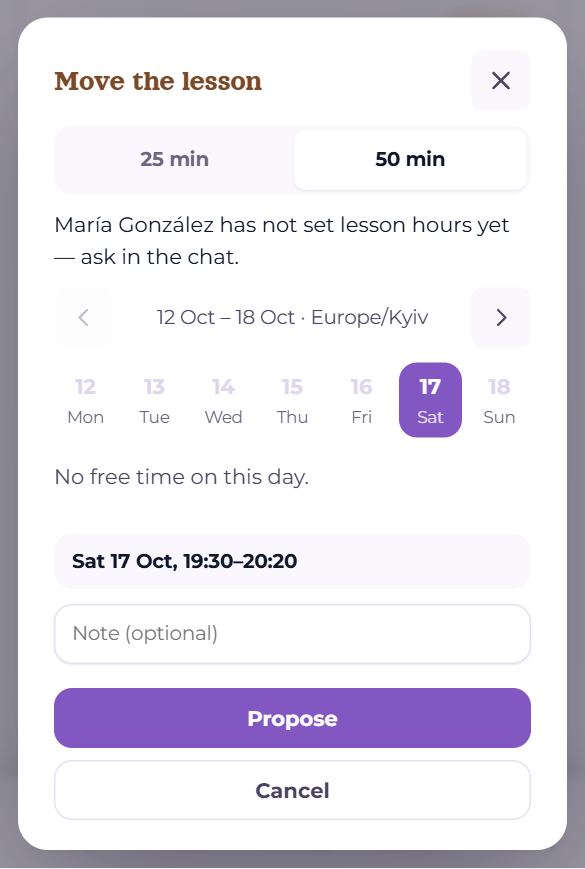
On a phone the dialog slides up from the bottom of the screen, and the buttons at its foot stack one under the other.
Days and times
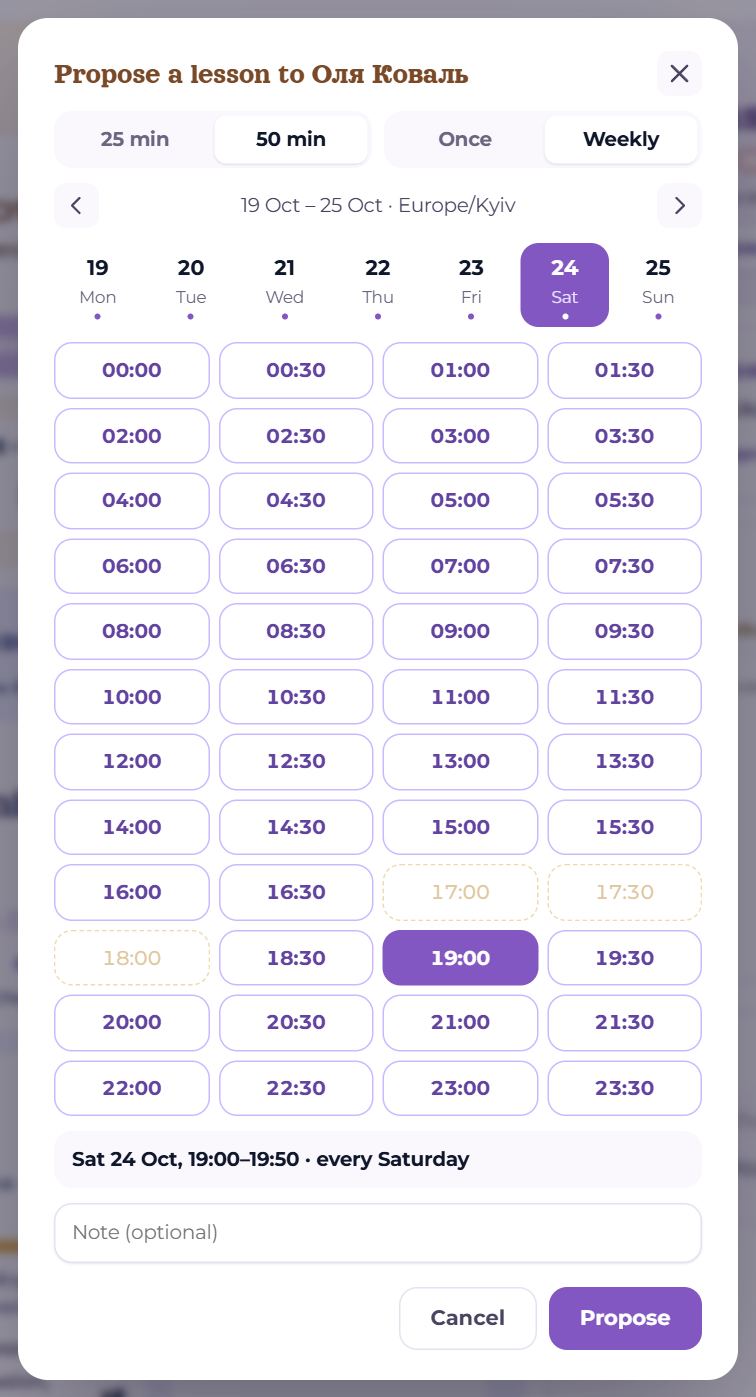
- The week — the arrows left and right; between them, the dates and your time zone. It does not go back past the current week.
- The days — seven buttons. A dot under a day means there is free time on it; a pale day is past or has no free time.
- The times — lesson starts every half hour (:00 and :30), on your clock. None at all — “No free time on this day.”.
- A pale dashed time — somebody has already asked for it and is waiting for an answer (“Somebody has asked for this time and waits for an answer”). It cannot be picked until that request is settled.
What exactly is offered:
- To a student — the teacher’s hours (their week and exceptions), less their lessons and the busy time from their other calendars, less the student’s own lessons. If the student has set their own hours (Settings → Schedule and lessons), only the overlap remains. And the teacher’s rules: not sooner than so many hours ahead (12 by default) and not further than so many weeks (8).
- To a teacher — any free time, even outside their own hours: the hours bind students, not the teacher. Other lessons, other calendars and the student’s hours, when set, apply all the same.
A 50-minute lesson takes two half-hour cells — it leaves 10 minutes before the next one.
Summary and note
Once a time is picked, a summary appears under the times: the day, from when to when, and for a series “every Saturday”. If the other side is in another time zone, their clock is below it: “for the teacher 11:00 (Asia/Tbilisi)” or “for the student …”.
- “Note (optional)” — a line for the other side, up to 500 characters (“topic — renting a flat”). There is none on “Suggest another time”.
- The button at the bottom: “Propose”; “Book” when a student books with a teacher who auto-confirms; “Send” on “Suggest another time”.
- If somebody took the time while you were choosing, the dialog says “This time is already taken or outside the teacher’s hours” and refreshes the times.
Answering a request

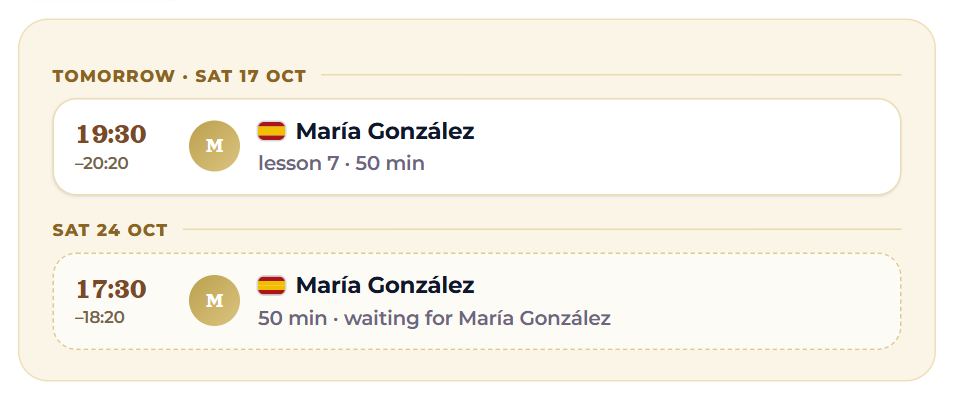
A request sent is visible to both. The one who asked sees a line “waiting for María” and a “Withdraw” button. The one who is asked:
- finds it on the pair’s page, above the schedule and (a teacher) on “Today” under “Waiting for you”; across the app there is a strip “1 lesson request is waiting for an answer”; plus notifications, as set;
- “Confirm” — the lesson is confirmed, both are notified, the lesson shows up in calendars;
- “Another time…” — the same dialog, “Suggest another time”: the request moves to the new time and now waits for the first side’s answer. An intro stays an intro;
- “Decline” — the request is declined, the time is freed, the other side is told.
In the schedule’s list a request is a dashed row marked “answer”; tap it for the lesson card with the same buttons.
When a request expires
A request says “answer by Sat 24 Oct, 17:30 or the request expires”. If nobody answers before the lesson’s start, the request expires: its status is “expired”, the time is freed, and both are notified. If it was the first lesson of a weekly series, the series expires with it — weeks nobody agreed to in time are not laid out.
The teacher’s auto-confirm
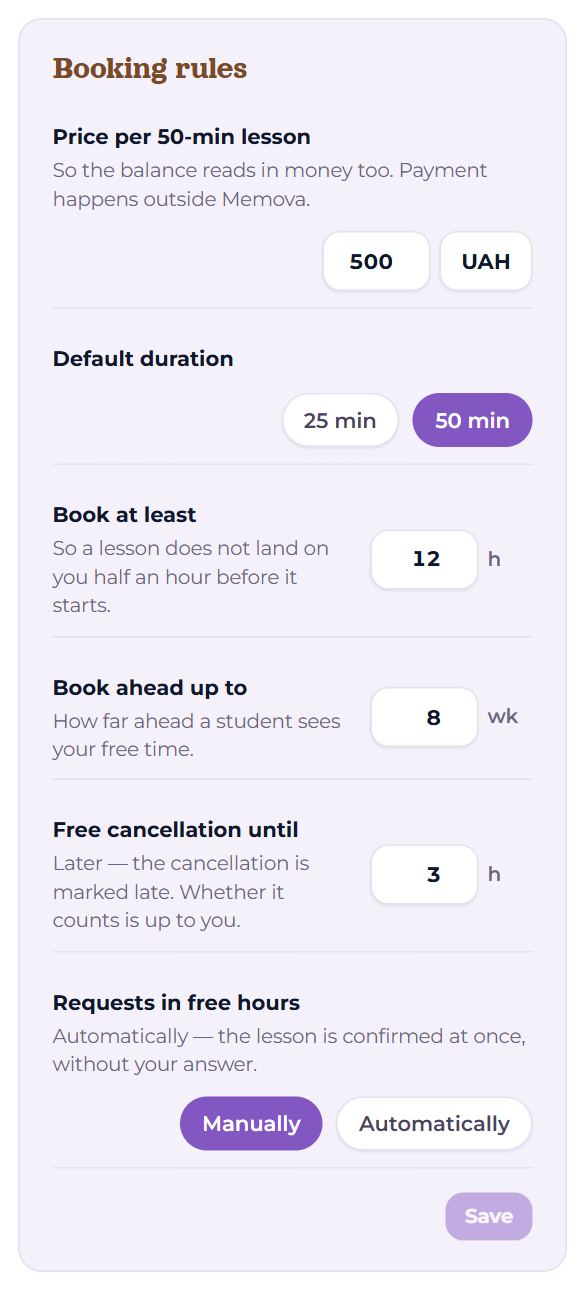
Settings → Schedule and lessons → Booking rules — the rules students book by:
- Price per 50-min lesson and the currency — so the balance reads in money too (see “Money”);
- Default duration — 25 or 50 min, where the booking dialog starts;
- Book at least … h, Book ahead up to … weeks — the nearest and the furthest time a student sees;
- Free cancellation until … h — see “Cancelling a lesson”;
- Requests in free hours: “Manually” — every request waits for you; “Automatically” — a student’s booking into your free hours becomes a confirmed lesson at once, and the student’s button says “Book”. Your own proposals to a student still wait for their answer.
Changes apply after “Save”; until saved, “Unsaved changes” shows next to it.
Moving a lesson
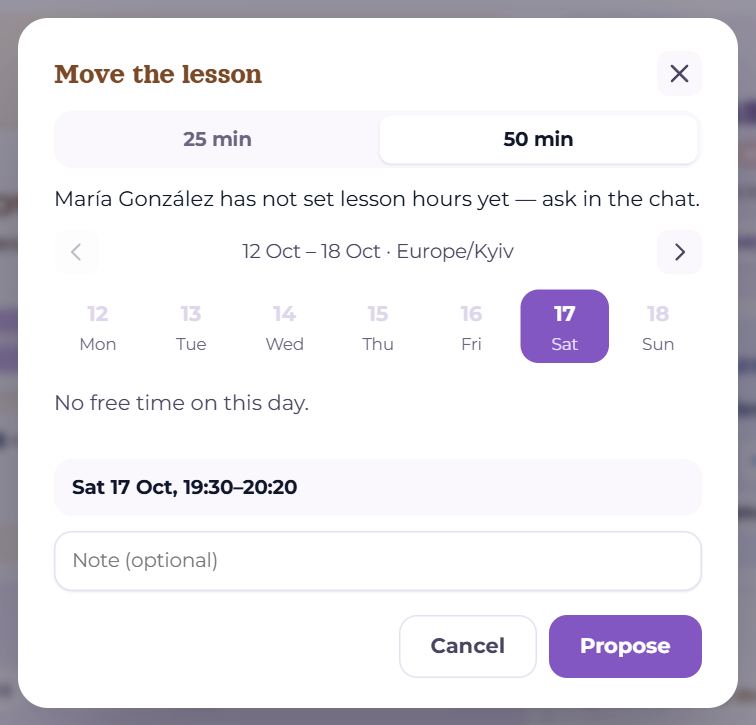
“Move” is next to the coming lesson on the pair’s page and on the lesson card in the schedule — while the room is not open yet. The dialog opens on the lesson’s week with its present time in the summary; pick another and press “Propose”.
- A move is a request that names the old lesson. Until the other side agrees, the old lesson holds: the list says “moving it from Fri 16 Oct, 18:00: that lesson holds until you both agree”.
- Agreed — the old lesson is cancelled (not late, not counted), the new one is confirmed. Declined — the old one stays.
- Two moves of the same lesson — from the site and the phone, or from both sides — the later one stands, the earlier is withdrawn by itself.
- A student moving into the free hours of a teacher who auto-confirms gets the new time at once.
- A request not answered yet is “moved” as “Another time…”: the same request at another time.
Cancelling a lesson
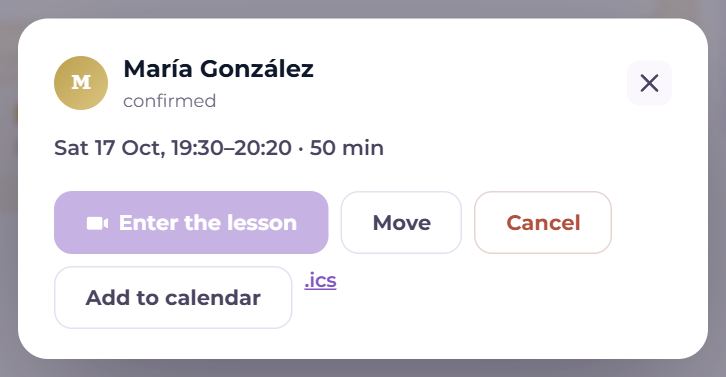
“Cancel” — next to the coming lesson, on the lesson card in the schedule, and for later lessons on the pair’s page a cross in the row. It asks first: “Cancel the lesson?” — “The time frees up at once. A late cancellation by the student may be counted by the teacher.”
- The teacher cancels — the lesson is never taken off the balance.
- The student cancels earlier than the teacher’s “Free cancellation until” hours (3 by default) — no consequences either.
- The student cancels later — the lesson is marked “late” but not counted. Whether to count it is the teacher’s call: “Deduct” / “Don't deduct” in the statement, within a week. Shortly before the free cancellation ends, the student gets a reminder that the lesson can still be moved (if that notification is on).
- Once the room is open, “Move” and “Cancel” go away — “Enter the lesson” remains.
- Your own request that has not been answered yet can be taken back — “Withdraw”.
Weekly lessons
An agreed series shows on the pair’s page as a line “every Saturday at 19:00 · 50 min” with an “End the series” link. The series’ lessons appear in the schedule ahead of time, each an ordinary lesson: it can be moved or cancelled on its own. “End the series” asks “End the weekly lessons?”: the future lessons of the series are cancelled, the ones held stay in the history.
Time zones
- Everyone sees times on their own clock: the zone in Settings → Study plan → Time zone, or the browser’s if none is set. The zone shows in the booking dialog next to the dates.
- The half-hour cells are counted on the teacher’s clock: their hours “from 10:00” mean 10:00 in their city.
- If the zones differ, the summary shows both clocks, and notifications give the time on the reader’s clock with the zone’s name.
- A weekly series keeps to the teacher’s clock. If a daylight-saving change will pull your clocks apart within the next six weeks, the dialog warns ahead: “Your clocks will come apart in the coming weeks (a daylight-saving change) — the series will stop and have to be proposed again.”. When the clocks do come apart, the series stops with an explanation on the pair’s page; the lessons before that day stay. “Got it” clears the note, and a new series is proposed at the new time.
A lesson can go into your calendar: “Add to calendar” (Google) or an .ics file on the lesson card. A subscription to all your lessons at once is in Settings → Schedule and lessons.
Questions
- Why does the teacher have no free times though they say they are free?
- Either they have not set lesson hours, or the time is busy in another of their calendars, or it is sooner than their “Book at least” rule allows. Write in the pair’s chat — the teacher can propose a lesson themselves, at any free time.
- Can I move a lesson half an hour before it?
- Yes, while the room is not open (10 minutes before the start). But a late move is awkward for the teacher too — better write in the chat.
- What if nobody answers a move?
- The request expires at the new time’s start, and the old lesson stays as it was.
- I do not see the intro lesson.
- It happens once per pair, and only with a teacher who offers a free intro on their card. If the intro has already happened (or is waiting for an answer), there is no 10-minute option.