Lessons and teachers
All your lessons with all your teachers, in every language, on one page: what is ahead, who your teachers are, and how to bring yours here or find a new one.
Where it is
The Lessons item in the menu. Notifications about lessons and requests lead here too. From here every teacher opens as a page of their own, the “pair page”, with the lessons, payments and chat with that teacher (see “Your page with a teacher”).
No teacher yet
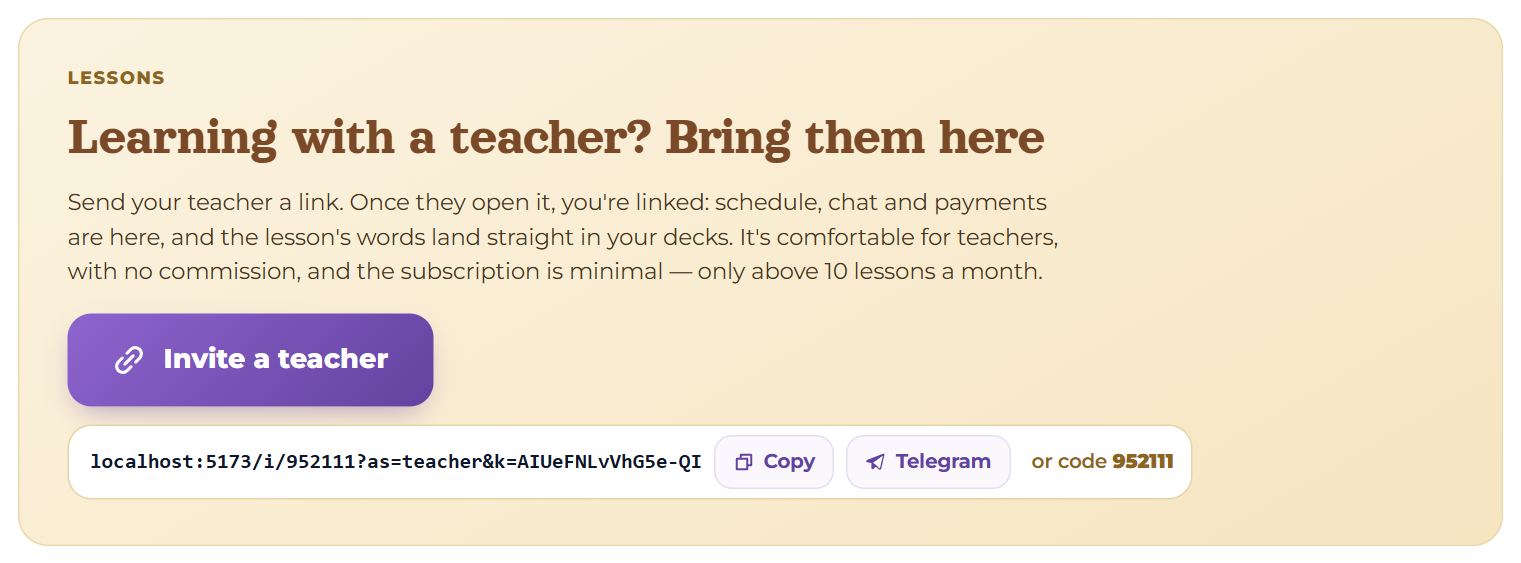
While you are not linked to anyone, the page shows three cards: the catalogue search, the field for a code and, below them, the invitation “Learning with a teacher? Bring them here”:
- The big “Invite a teacher” button: on a phone it opens the Share menu (Telegram, Viber, mail); on a computer it copies the invitation link.
- Under it, the link itself, “Copy”, Telegram and “or code” — your code, in case your teacher would rather type it.

- “Looking for a teacher?” — the first card: the “Find a teacher” button leads to the catalogue (see “Teacher catalogue”).
- “Did your teacher give you a code?” — the “Teacher's code” field and “Link”. The request goes to the teacher; until they confirm, the top of the page shows that it is waiting.
Top of the page

- In large type, your next lesson with anyone: “Next lesson tomorrow at 19:30”, or “No lessons planned”.
- Under it, how many teachers you have now and in which languages.
- On the right, “Find a teacher”.
Link requests
Lines appear above the schedule while a link with a teacher is not settled yet:
- “María wants to be your teacher” and the “Accept” button — the teacher typed your code. Accept, and they join your list of teachers.
- “María has not confirmed yet — they will appear here once they do.” — you typed the teacher’s code or wrote to them from the catalogue; the line goes away as soon as they accept.
Schedule
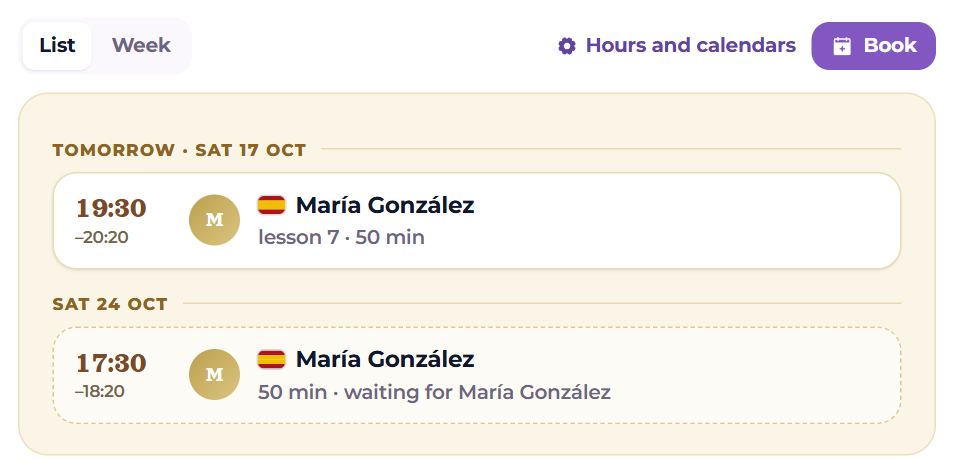
The switch at the top gives two views of the same lessons:
- List — the next two weeks, only the days that have something on them. Each row: start and end time, the language flag, the teacher and small notes — “lesson 7” (the lesson’s number with this teacher), the length, “weekly”, “waiting for your answer” or “waiting for María”, “moving it from…”. On the right: “unpaid” (no payment covers the lesson yet), “paid” or “answer”. When empty: “Nothing planned for the next two weeks.”.
- Week — the week as a grid, with arrows and “Today”. The view is kept in the page address.
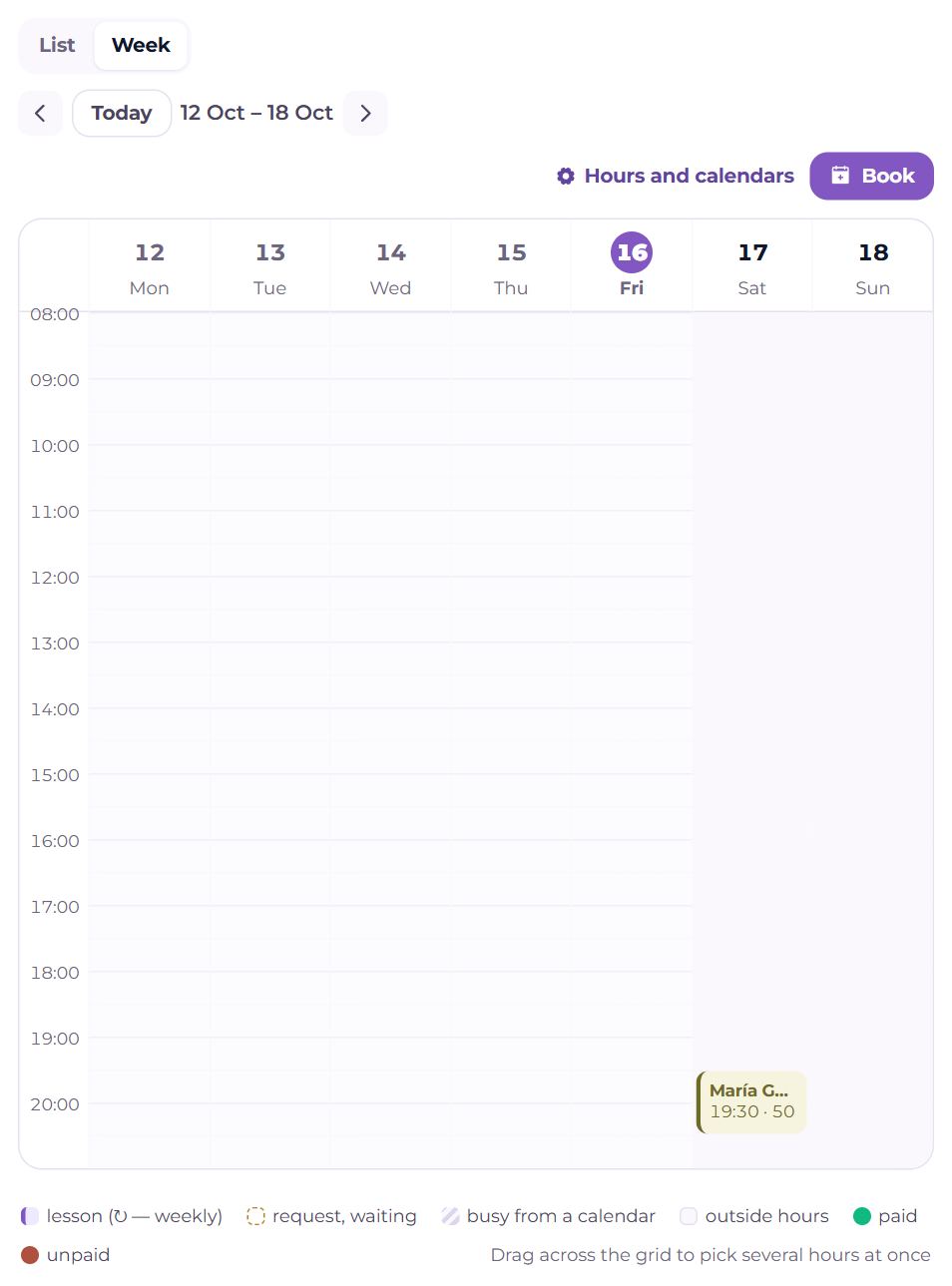
The grid shows lessons (↻ marks weekly ones), requests waiting for an answer, and the time taken in your other calendars. Tap an empty half-hour — or drag across several — and choose a teacher in the “A lesson with whom?” menu: a lesson proposal opens for that time.
- “Book” at the top right does the same without picking a time: first the teacher, then the booking window (see “Booking a lesson”).
- “Hours and calendars” — Settings → Schedule and lessons: your time zone and the calendars Memova reads your busy time from.
For time taken in another calendar Memova only sees “busy” — it neither reads nor keeps the names of events.
Lesson card
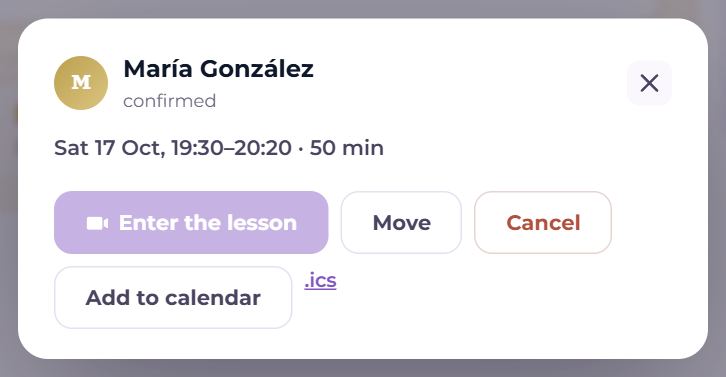
Tap a lesson in the schedule to open its card: the teacher (the name leads to the pair page), the status (proposed, confirmed, done…), “Weekly”, “outside Memova”, paid or unpaid, the date and length, and the note left with the request. The buttons depend on the status:
- “Enter the lesson” — active from 10 minutes before the start until 15 minutes after the end;
- “Move” and “Cancel” — for a confirmed lesson, until the room opens;
- “Confirm”, “Another time…”, “Decline” — when a request waits for your answer; “Withdraw” — when your own request waits for the teacher;
- “Open” — for a past lesson: its record with the words;
- “Add to calendar” (Google Calendar) and .ics — put the lesson in your calendar; if a calendar is connected in Settings, “✓ In your calendar” shows instead.
My teachers
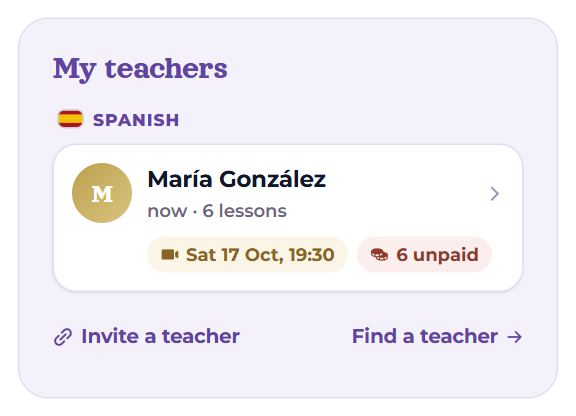
To the right of the schedule (below it on a narrow screen) are your teachers, grouped by language under its flag.
- Under the name: “6 lessons together” or “earlier · 6 lessons”. Bright cards are teachers with a lesson ahead, a lesson in the last six weeks, or a fresh link; the others are paler, lower down, marked “earlier”. Before any lesson — “no lessons yet”.
- The number in a circle is unread messages in the chat with that teacher.
- Chips: the next lesson (gold) and the balance — “6 lessons unpaid” or “4 lessons prepaid”.
- “account deleted” — the teacher deleted their account; the lessons, payments and messages stay.
Tap a teacher to open the pair page.
Invite a teacher
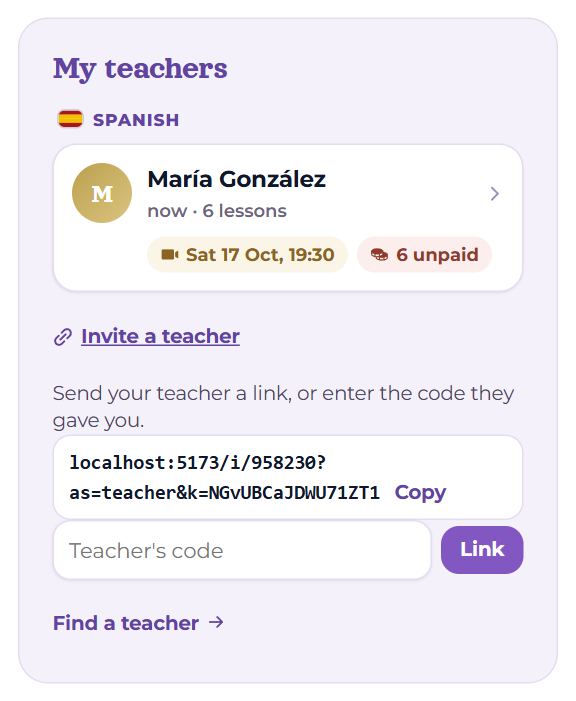
At the bottom of the list is “Invite a teacher”. It unfolds into your invitation link (tap it to copy) and a field for a teacher’s code.
- Send the link to your teacher. They open it, sign in or sign up, and agree.
- Done: the teacher is in your list at once, and the schedule, chat and payments open up. There is nothing for you to confirm.
Or the other way round: your teacher gave you their code — type it into “Teacher's code” and press “Link”; then the teacher confirms.
Being linked does not yet show the teacher your words. Access to the words of each language is given separately: Settings → Teachers and students.
Find a teacher
“Find a teacher” — at the top of the page and under your list of teachers — leads to the catalogue: teacher cards with prices, reviews and hours. You can write to a teacher from there. More in “Teacher catalogue”.
On a phone
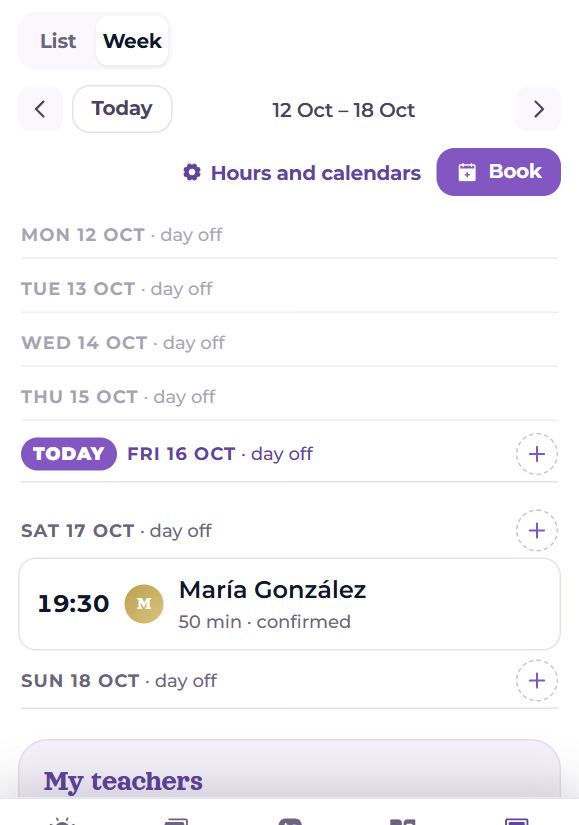
Everything is in one column: the schedule, and the teachers under it. On a phone the “Week” view is not a grid but a list of the week’s days; the “+” by a day proposes a lesson on that day. The invitation button shares the link through the phone’s own menu.
Questions
- I learn two languages with different teachers — are there two pages?
- No, there is one Lessons page: the schedule has every lesson together (with the language flag), and the teachers are grouped by language.
- Why is my teacher under “earlier” when we still have lessons?
- Because there has been no lesson for six weeks and nothing is booked. Book a lesson and they move back to “now”.
- I both learn and teach. What do I see here?
- The schedule shows all your hours: the lessons where you are the student are marked “Your teacher · …”. Your students are in the teaching section.
- A request expired — what happened?
- A lesson request waits for an answer until the time of the lesson itself. If nobody answered in time, propose another time.