A student’s page
Everything about one student on one page: what is ahead, what the student does alone between lessons, past lessons and payments, the balance, your notes and your chat. It opens from the student’s row on Students or Today.
Top of the page

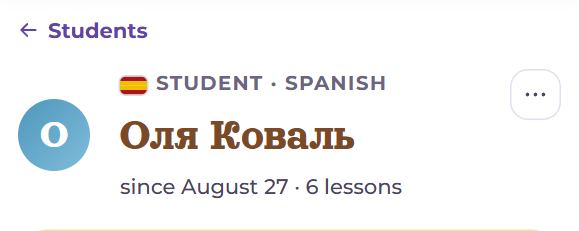
The “Students” arrow goes back to the list. Then the language the student learns, their name, since when you have been working together, how many lessons have taken place, and how many days in a row the student has studied on their own (the streak). On the right, the “⋯” button (see “The “⋯” menu”).
On a computer the page has two columns, each running to its own length. On a phone they become one list, in the order of what matters next.
Ahead
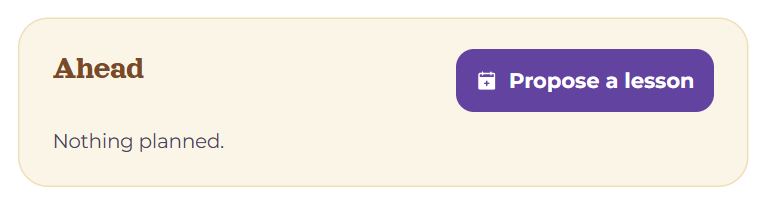
The “Propose a lesson” button opens the booking dialog: day, time, length, once or weekly (see the article on booking a lesson). The student gets a request and confirms it.
The next lesson
- “Next lesson” (or “Lesson in progress”) — day and time, length, “weekly” for a series, when the room opens.
- “Add to calendar” adds the lesson to Google Calendar; if your calendar is already subscribed to your lessons, it says “✓ In your calendar”.
- “Enter the lesson” is active from 10 minutes before the start; until then it says when you can join.
- “Move” and “Cancel” — for a confirmed lesson, until the room opens. A move is a request: the old lesson holds until the student agrees.
Nothing planned: “Nothing planned.”.
Requests, lessons, series
- Requests — the ones waiting for you (“Confirm”, “Another time…”, “Decline”) and yours waiting for the student (“Withdraw”). A lesson outside Memova written in by the student only asks you to confirm it happened.
- The next lessons — up to five, each with a cross to cancel it. “last one paid” marks the last lesson the payment covers; “unpaid until paid for” — this lesson goes on credit unless the student pays more.
- A weekly series — “every Saturday at 19:30 · 50 min” and “End the series”: the series’ future lessons are cancelled, the past ones stay. If your clocks came apart with a daylight-saving change, the series stops and says so here — propose it again and press “Got it”.
Between lessons
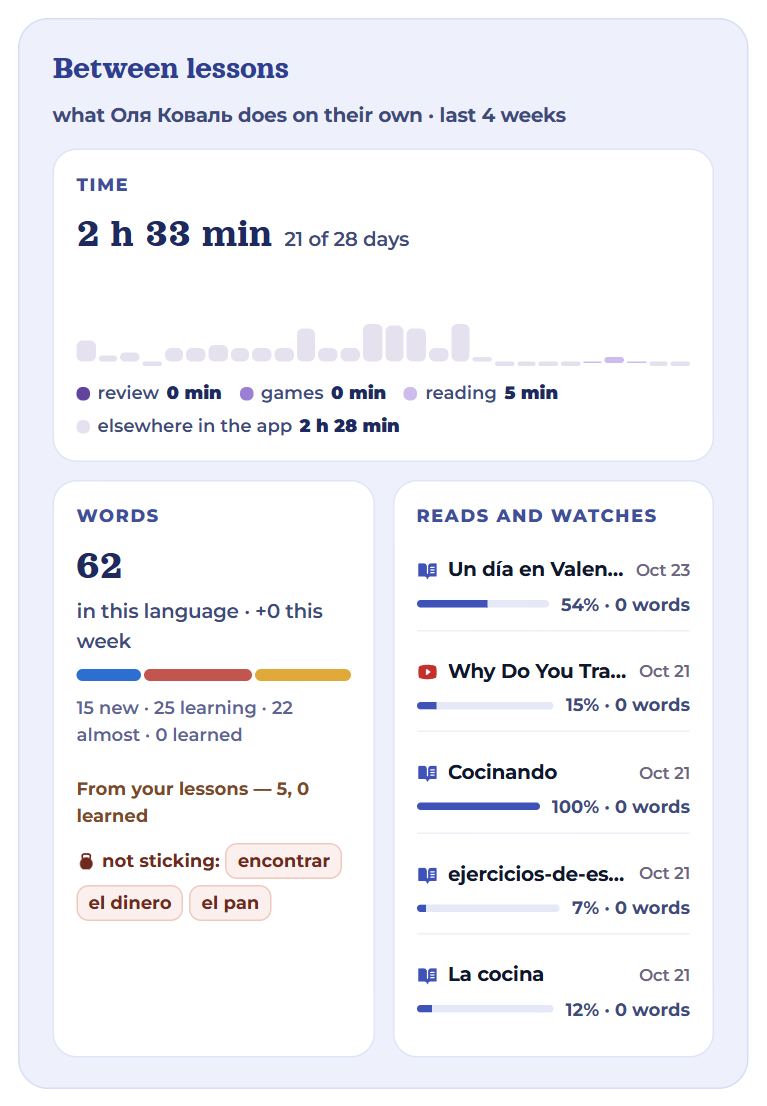
“Between lessons” is what the student does on their own over the last 4 weeks, in the language of your lessons. If the student learns several languages with you, a language switch is at the top.
- Time — the total and on how many of the 28 days they studied; a bar for each day, split into review, games, reading and elsewhere in the app.
- Words — how many words in this language and how many were added this week; a strip by stage (new, learning, almost, learned); where the new ones came from: from your lessons, from other lessons, from reading and video, typed, extension, import; how many words from your lessons are learned; and “not sticking:” — the words that got stuck (hover for the translation).
- Reads and watches — library texts and videos the student opened: when last, how much is read and how many words were saved from it. The title opens the material.
If it cannot be read: “Couldn't read it — the student may have closed access to this language.” — most often the student has closed access to this language.
Past lessons
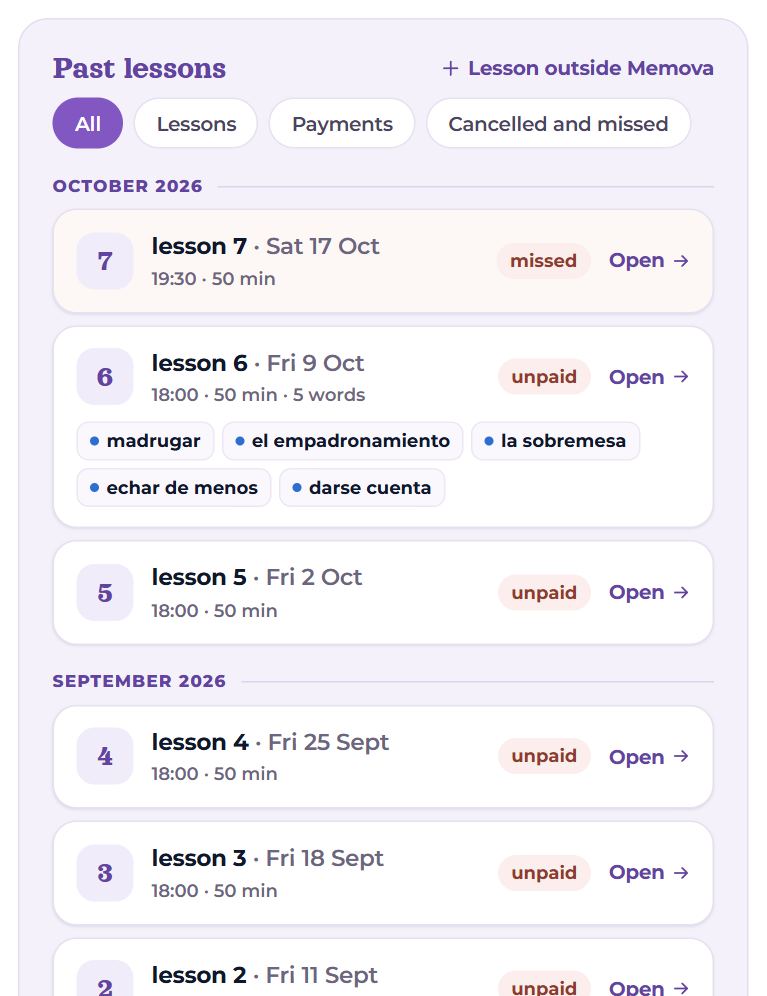
Only what is over, newest first, by month: lessons, cancellations and payments. Filters: All, Lessons, Payments, Cancelled and missed.
- A lesson — number, date, time, length, how many words were given; marks “paid” / “unpaid” / who did not come; “Open” — the lesson with its words and notes. Under it, the lesson’s words, coloured by where they stand for the student now.
- “⋯” by a lesson — correct it: “Mark as done” / “Mark as missed”, “It was 25 / 50 min”, “Deduct” / “Don't deduct” for a missed one. A lesson can be corrected for a week after it.
- A cancellation — by whom, whether late; a late cancellation can be deducted from the balance or not.
- A payment — how many lessons and how much money, who wrote it in, the note, a receipt. A student’s claim is confirmed here or on Today: the button with the number of lessons, or “Not received”.
“Lesson outside Memova” — write in a lesson held in person or in another app: date, time, 25 or 50 minutes, a note, “Record”. It goes on the ledger once the student confirms it.
Balance
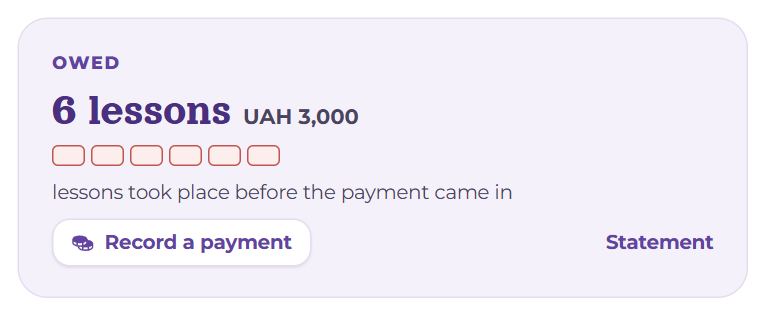
“Paid ahead” or “Owed”: how many lessons (and how much money, when a price is set), a dot for each lesson, and until which day the payment lasts given the lessons booked.
- “Record a payment” — write in a payment yourself (cash, a gift, a correction): a number of lessons, negative and 0.5 allowed, a note. It counts at once.
- “Statement” — the statement and terms: the price for this student and the payment details they see when reporting a payment.
Memova never touches the money: the student pays you directly, and this is only the accounting.
Access to words
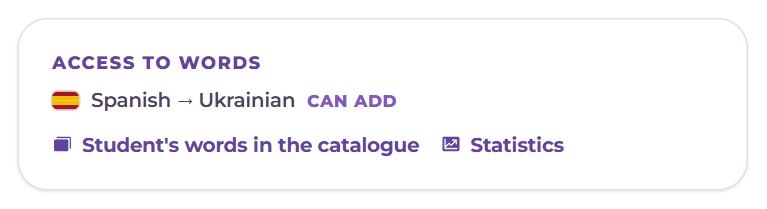
Which languages the student opened to you and at which level (view, add, edit — see “Students and invitations”). “Student's words in the catalogue” opens the Catalogue with their words, “Statistics” their statistics.
My notes
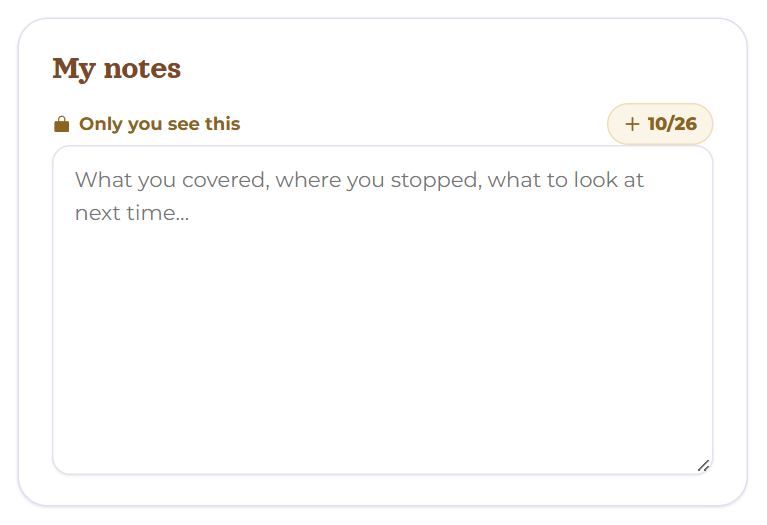
One text across all lessons: what you covered, where you stopped. “Only you see this” — the student never sees it. It saves itself as soon as you stop typing. The chip with today’s date adds a heading line for a new entry. The same notes are open in the lesson room; if they are changed in two windows, you are asked: “Take that one” or “Keep mine”.
Chat
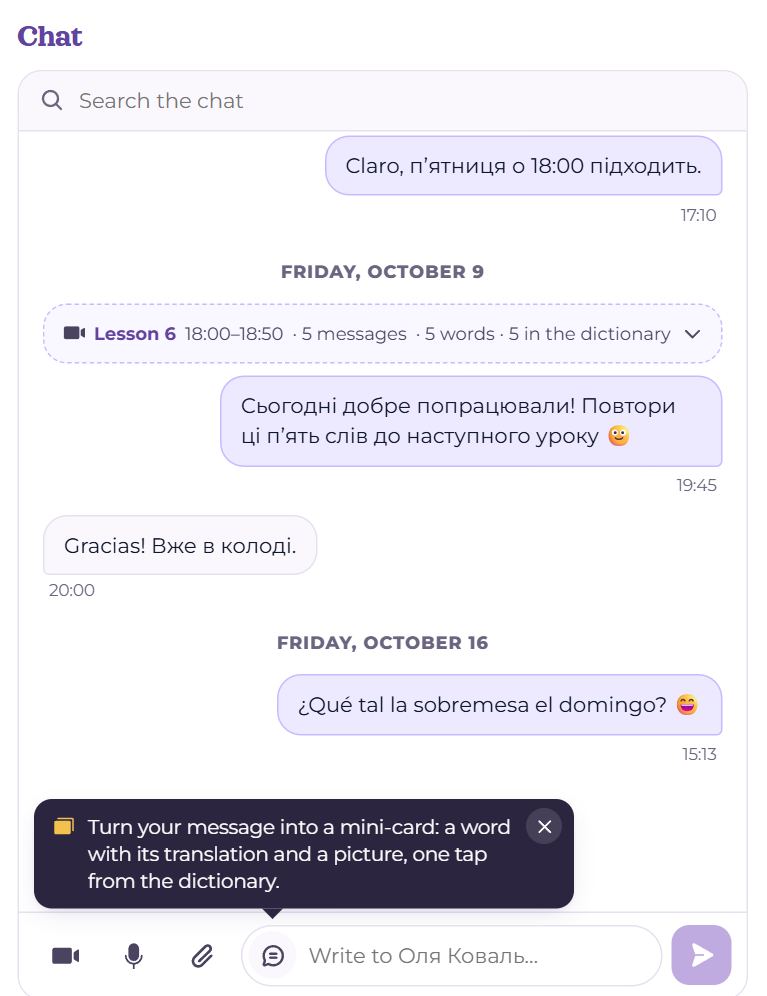
The same chat the student sees, and the one that runs during lessons: a lesson’s messages are gathered under its heading with the number of words.
- “Search the chat” and the files button — everything you sent each other, and screenshots from lessons.
- The buttons by the field: “Invite to a lesson” (opens a call at once and sends the student the link), “Say the word” (say a word and it becomes a card), “Attach a file”.
- A word from a message — with “Make it a word”, or by selecting it and “To dictionary” — goes to the student’s dictionary if you have access to add.
The “⋯” menu
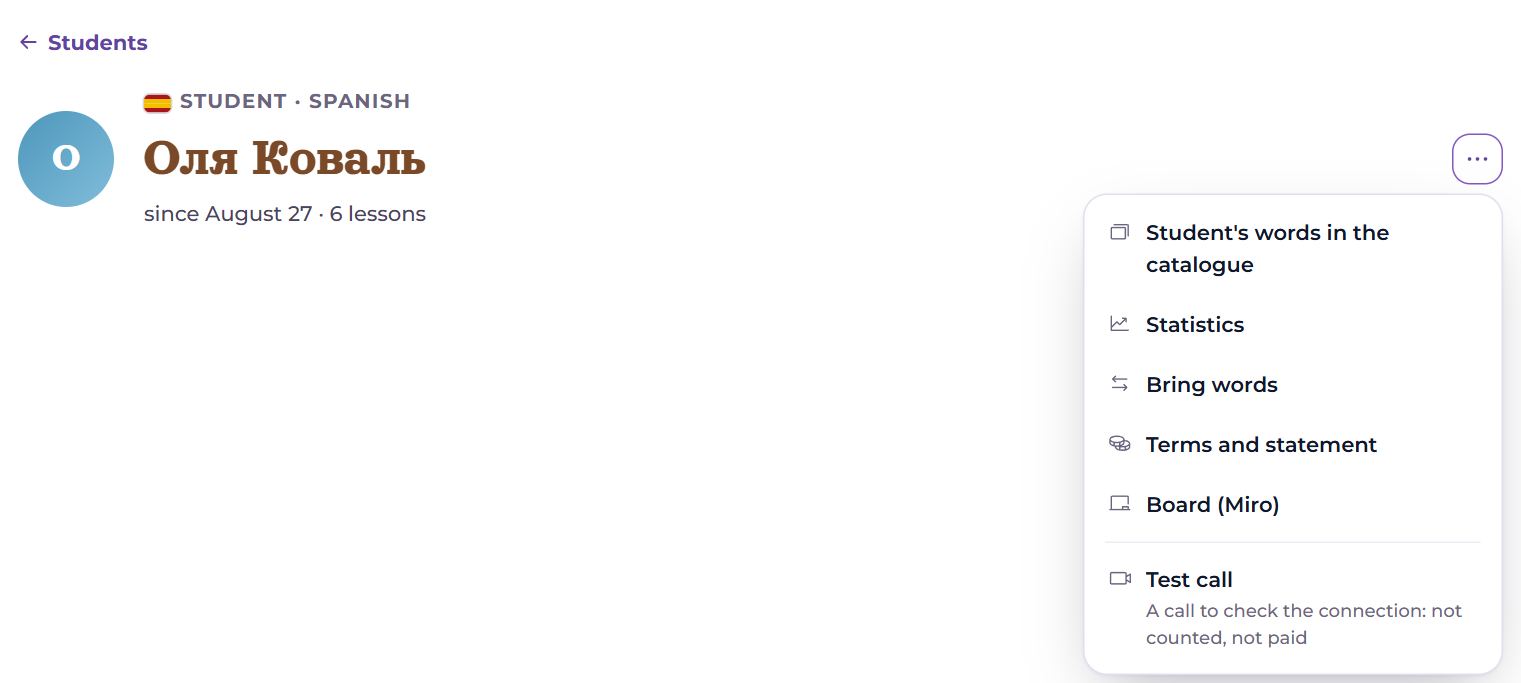
- Student's words in the catalogue and Statistics — as in the access block.
- Bring words — import words straight into the student’s decks (from Anki, a table, a list).
- Terms and statement — the price for this student, payment details, the whole payment history.
- Board (Miro) — see below.
- Test call — a call to check sound and camera; not counted and not paid.
Board (Miro)
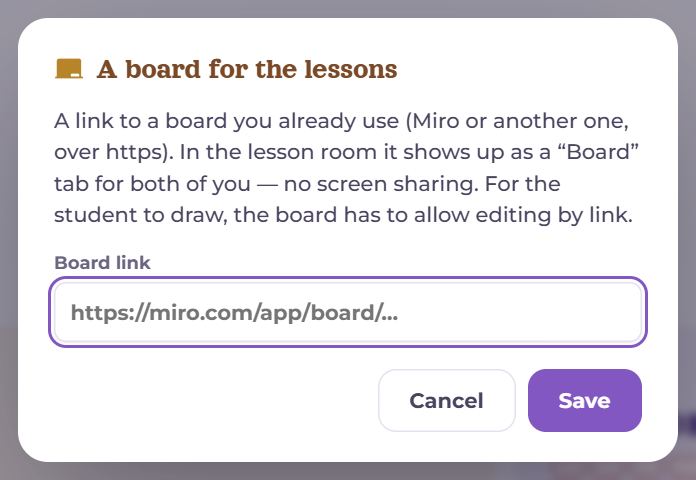
A hidden option for those who already teach on a board. Paste the link to your board (Miro or another one, an address starting with https://) and press “Save”. In the lesson room with this student a “Board” tab appears — for both of you, with no screen sharing. For the student to draw too, the board has to allow editing by link. “Remove the board” (or an empty field) takes the tab away.
Questions
- “Between lessons” is empty, though the student studies.
- It shows only the language of your lessons, and only what the student gave you access to. If access is closed, the block says so.
- A lesson took place but is marked missed.
- “⋯” by the lesson in Past lessons → “Mark as done”. It can be corrected for a week.
- Does the student see my notes?
- No. Only you see them — here and in the lesson room.