Schedule and hours
Two places about time. Schedule — your lessons for the next two weeks or as a week, with the free windows between them. Settings → Schedule and lessons — the hours students can book in, exceptions, calendars and booking rules.
Top of the schedule

- List / Week — two views of the same lessons. Above them, your time zone.
- “My hours” — to your hours in settings.
- “Lesson” — “A lesson with whom?”: a list of your students (and teachers, if you learn too), then the booking dialog (see the article on booking a lesson).
Lessons where you are the student are in the schedule too: a person has one set of hours.
Requests

Above either view is whatever waits for your answer: a lesson request (when, with whom, the time to answer by before it expires) with “Confirm”, “Another time…” and “Decline”; a weekly series stopped by a clock change, with “Got it”; a student’s payment claim with “Review” (to the student’s page).
List
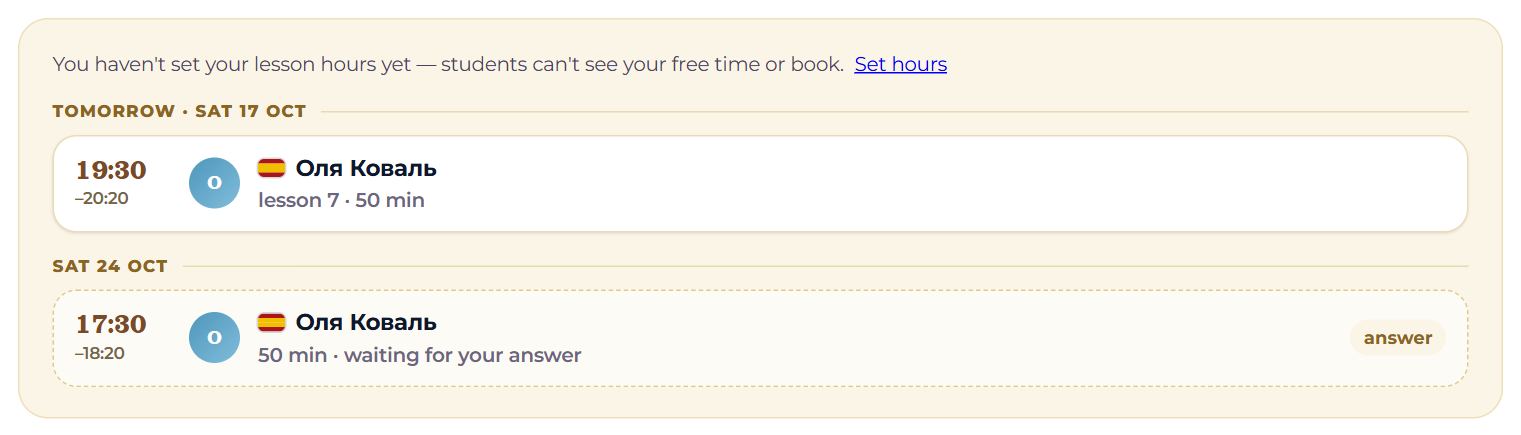
The next two weeks as a list of days. Days with lessons always show; once hours are set, the whole first week shows, empty days included.
- A lesson — start and end, the student with their language’s flag, the lesson’s number, its length, “weekly”, “moving it from …”. On the right, marks: “unpaid”, “paid”, “answer” — a request waits for you. Tap it for the lesson’s card with what can be done (confirm, move, cancel, join).
- “Busy in another calendar” — busy time from your other calendars; Memova does not see event names.
- “free:” — the windows left in your hours after lessons and busy time. Tap a window to book a lesson at that time.
- “a day off by your hours” — no hours on that day.
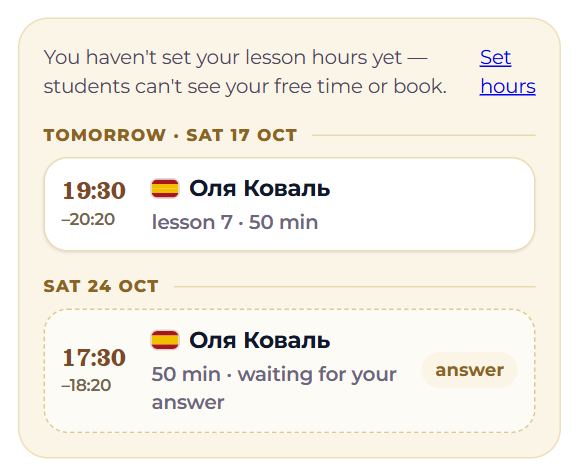
Until hours are set, the top of the list says students cannot see your free time, with a link to “Set hours”.
Week
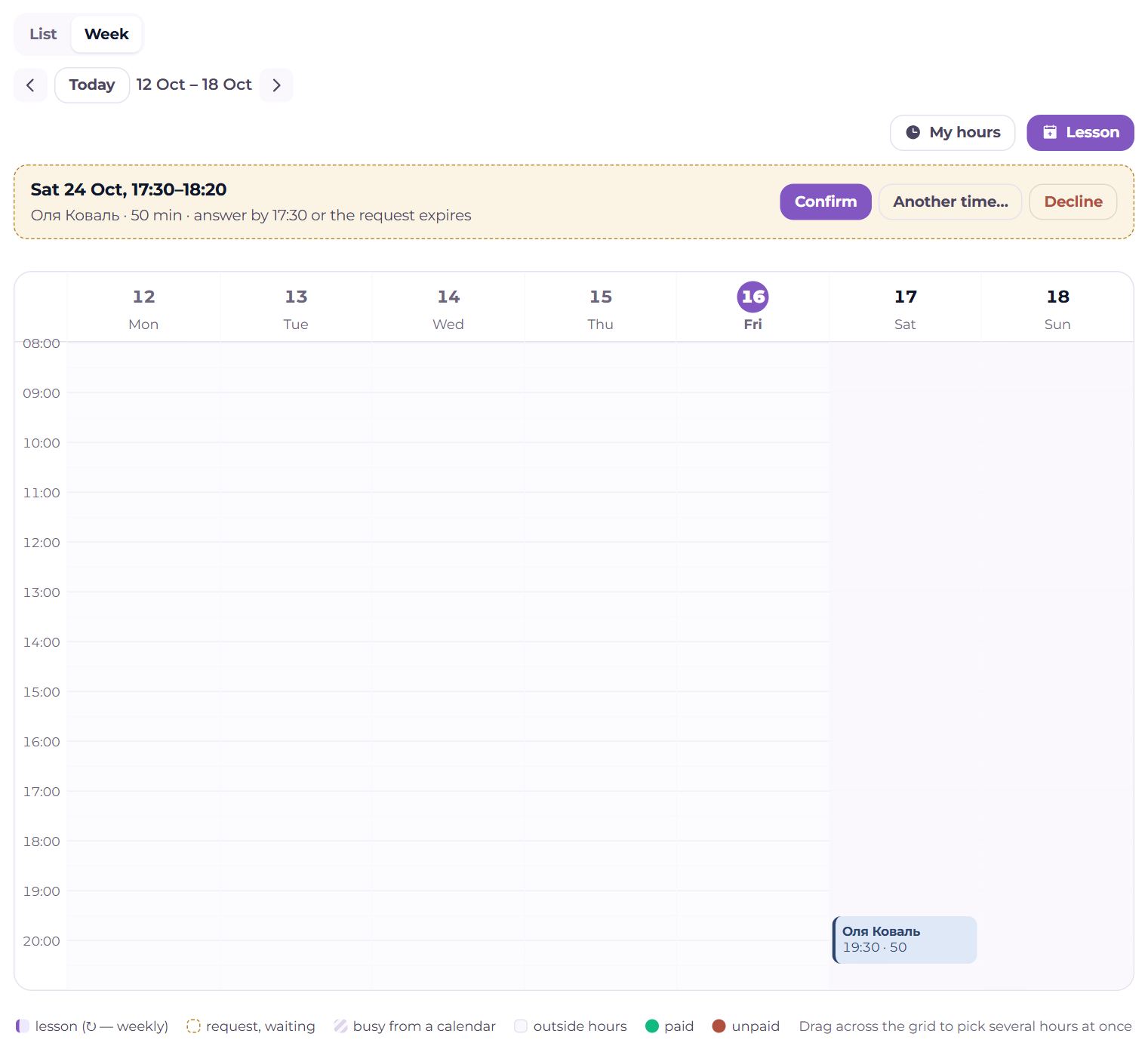
- The arrows and “Today” move between weeks; today is highlighted and a line marks the current hour.
- Shaded cells are outside your hours; striped ones are busy from a calendar. A lesson is coloured by student; “?” is a request, “↻” a weekly lesson; a dot says paid or unpaid. The legend is under the grid.
- A cell (half an hour) — tap it; on a computer you can drag across several. A menu opens: the time with an “until” field (the end), “A lesson with whom?” to propose a lesson, and “Busy at this time” or “Free at this time” — a one-off exception right from the grid. If lessons already sit in the time you close, you are asked whether to cancel them.
- A lesson — tap to open its card.
On a phone the week is a list of days with their lessons and a “+” by each day for a new one.
Weekly hours
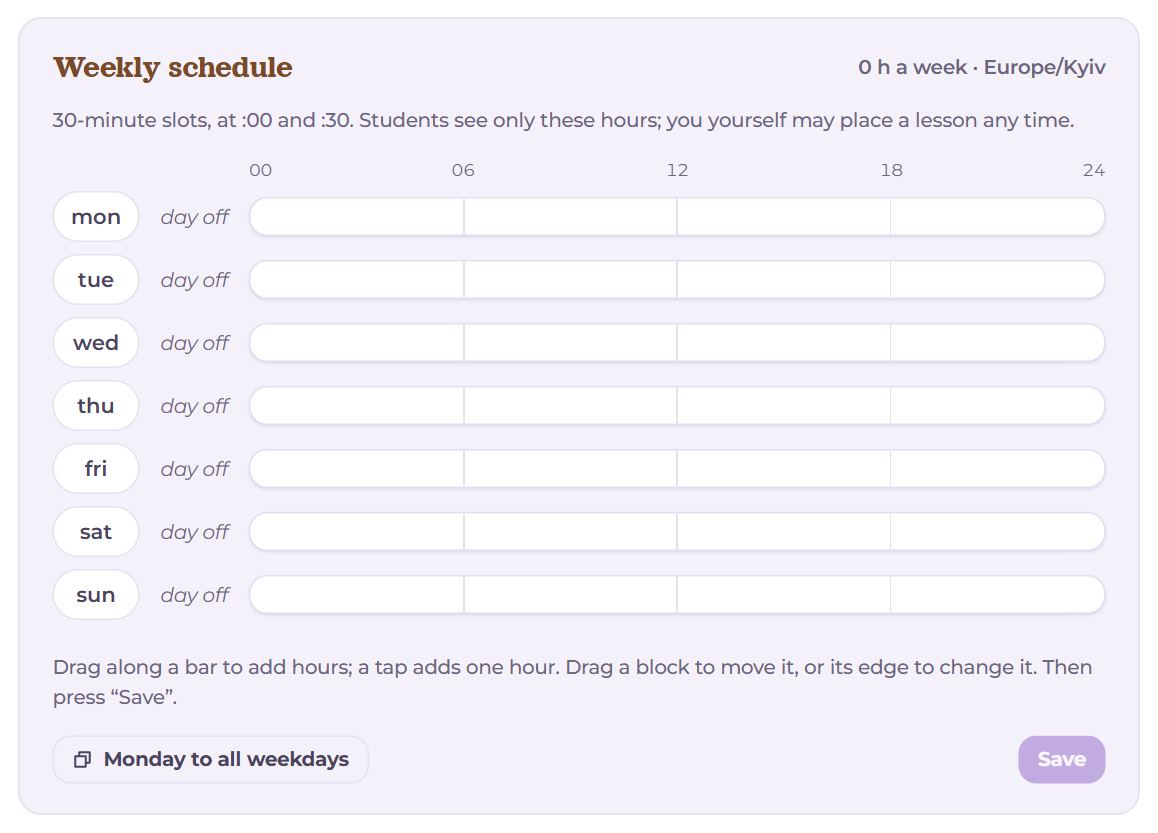
Settings → Schedule and lessons, the “Weekly schedule” block. At the top, the hours a week and your time zone. Students see and can book only these hours, in 30-minute slots at :00 and :30; you yourself may place a lesson any time.
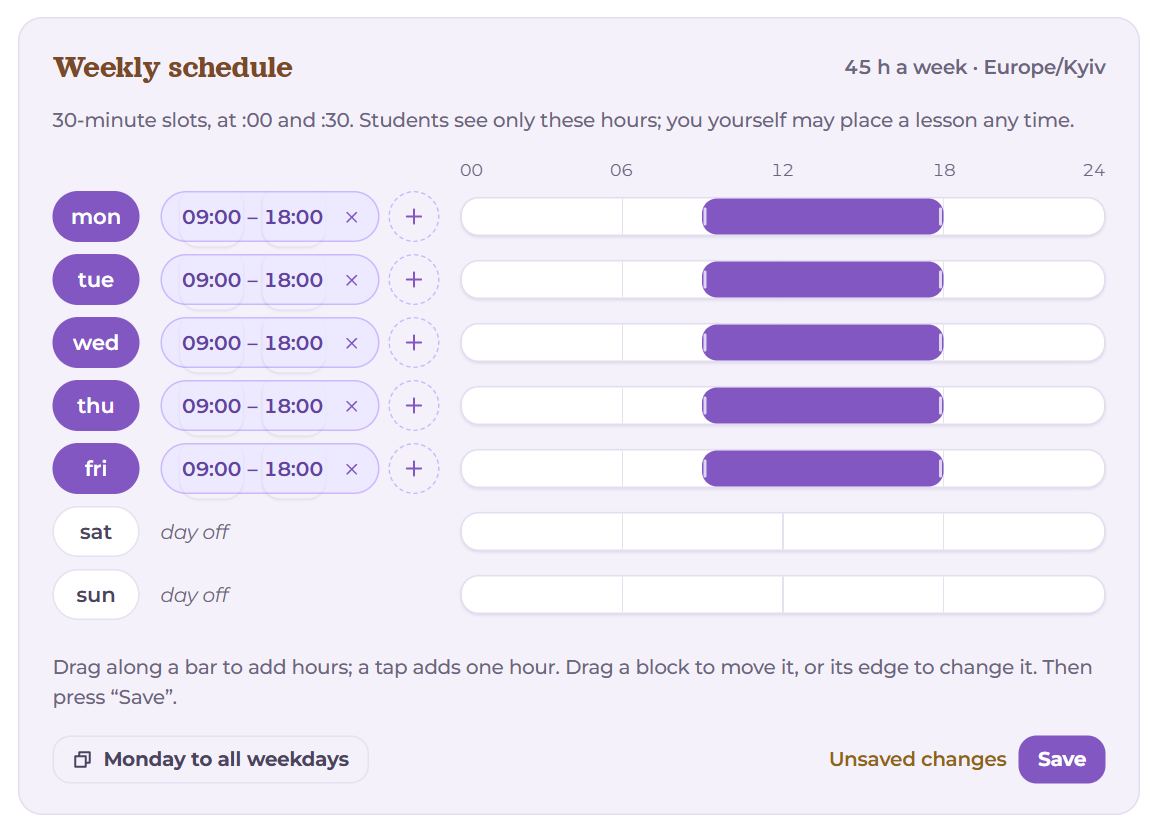
- A day chip (“Mon”, “Tue”…) switches the day on and off. A day switched off says “day off”. Switched back on, it gets the hours it had; a new one gets the hours most days have, or 9:00–18:00.
- An interval — two time lists, × removes it, “+” (Add an interval) adds a new one in the widest free part of the day.
- “Monday to all weekdays” — Monday’s hours become Tuesday’s to Friday’s.
- While something is changed but not saved: “Unsaved changes”. Nothing takes effect until you press “Save”.
Drawing hours on the bar
To the right of each day is a bar of the day from 00 to 24, and hours can simply be drawn on it:
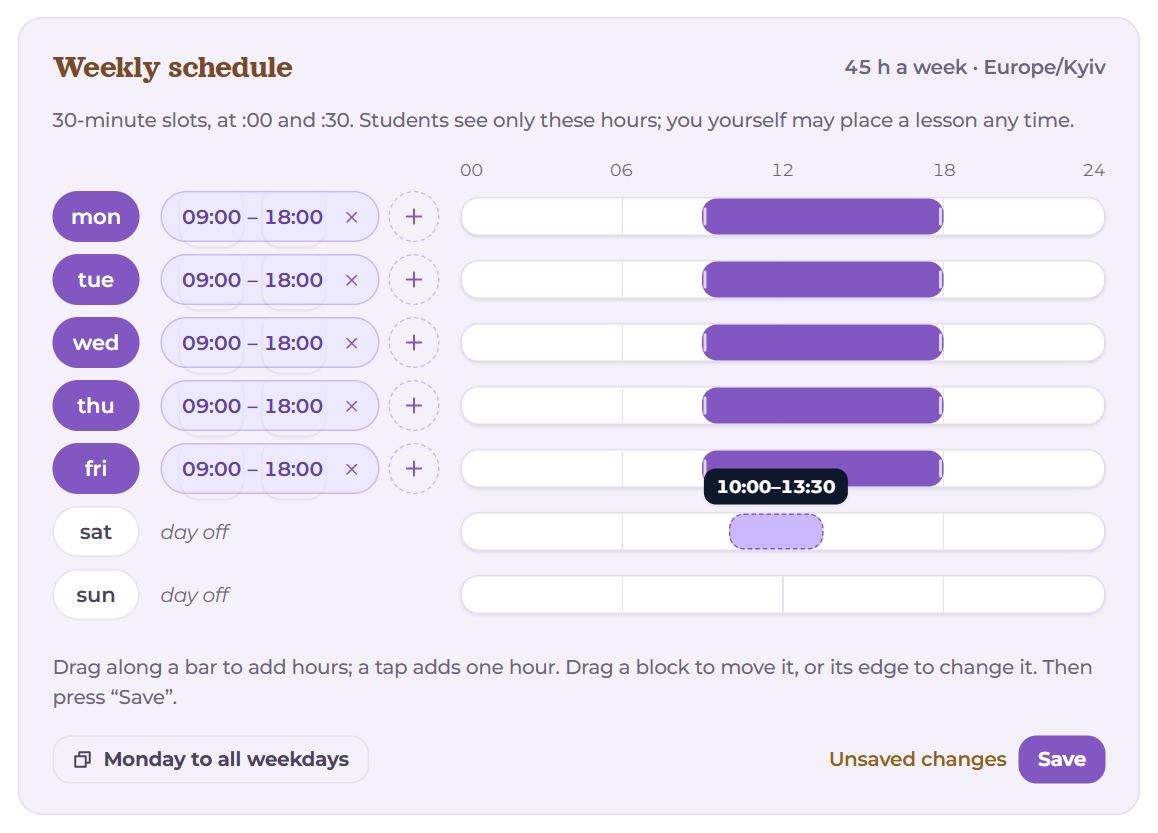
- Drag across empty time to add hours; above your finger or cursor you see from when to when.
- Tap empty time to add one hour from that half-hour.
- Drag a block to move it without changing its length.
- Drag a block’s edge to change its start or end.
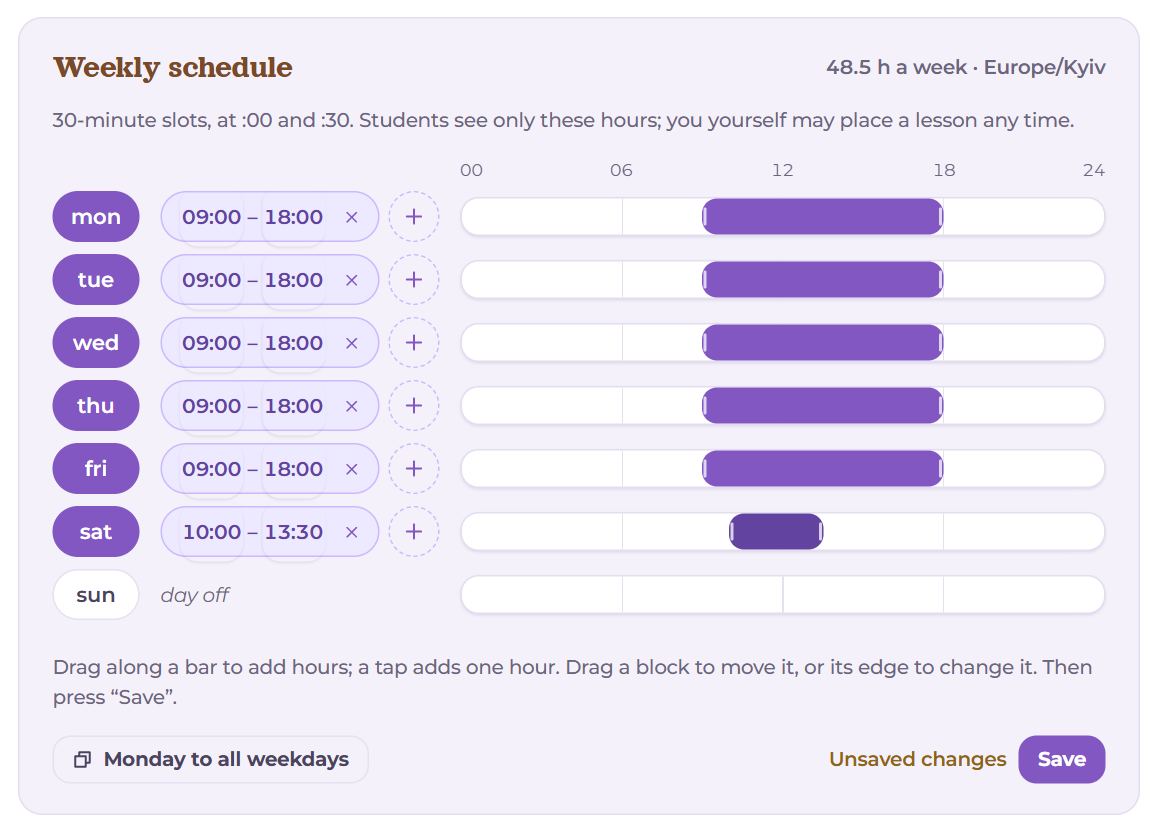
Everything snaps to the half-hour. Blocks that overlap or touch merge into one. The time lists on the left show the same at once, and you can adjust the minutes with them from the keyboard. After drawing, press “Save”.
Drawing on a day that is switched off switches it on.
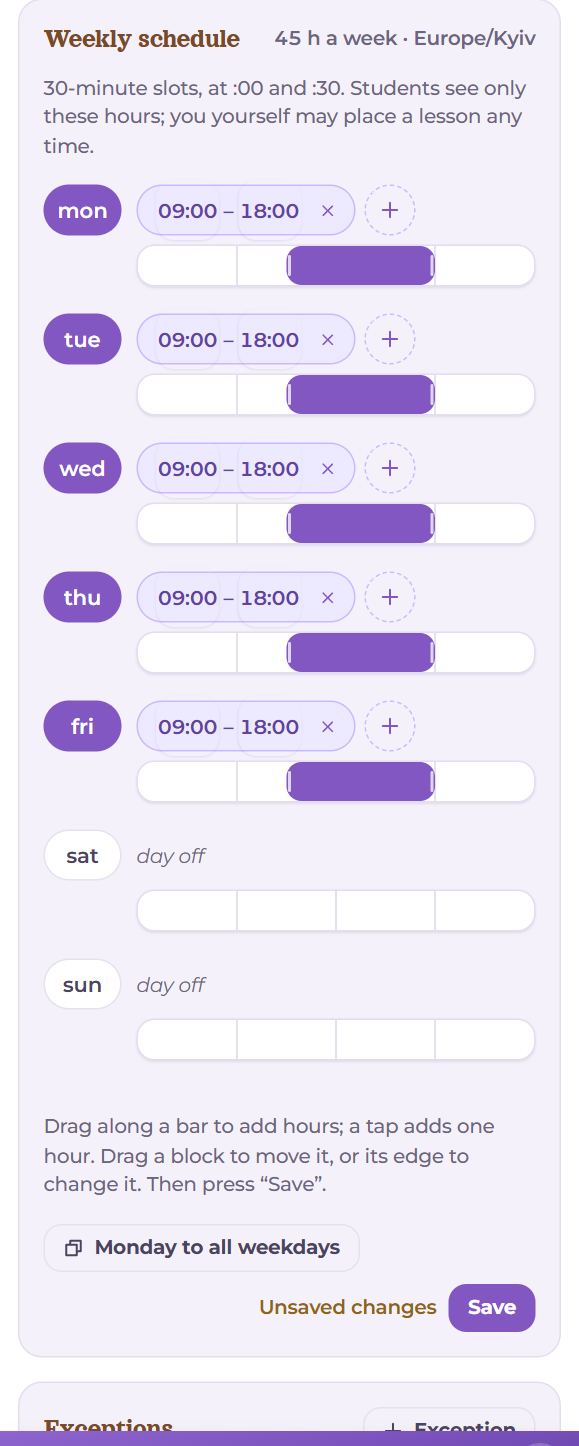
On a phone the bar sits under the day’s hours and works the same way with a finger.
Exceptions
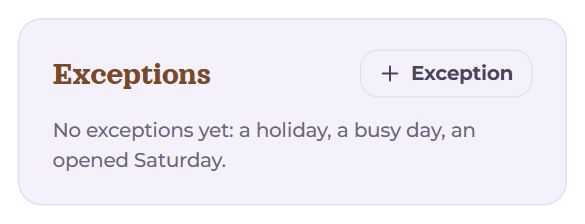
Dates that differ from the usual week: a holiday, a busy day, an opened Saturday. “Exception”:
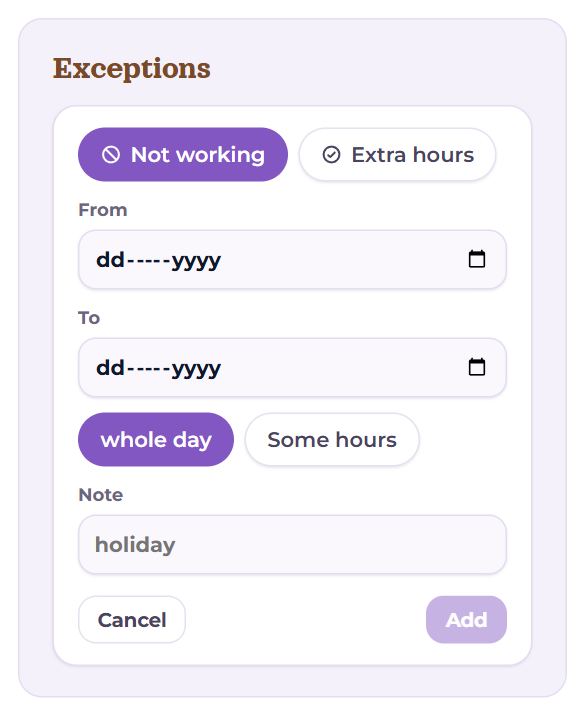
- Not working or Extra hours;
- the dates “From” and “To” (for one day, just the first);
- whole day or Some hours with the times;
- a Note if you like — and “Add”.
If lessons already sit in the closed time: “There are lessons at this time” with the list; “Close and cancel” cancels them. Exceptions made on the week grid half an hour at a time are gathered here into one row (“1–5 Oct, not working”); the bin removes the whole exception.
Calendars
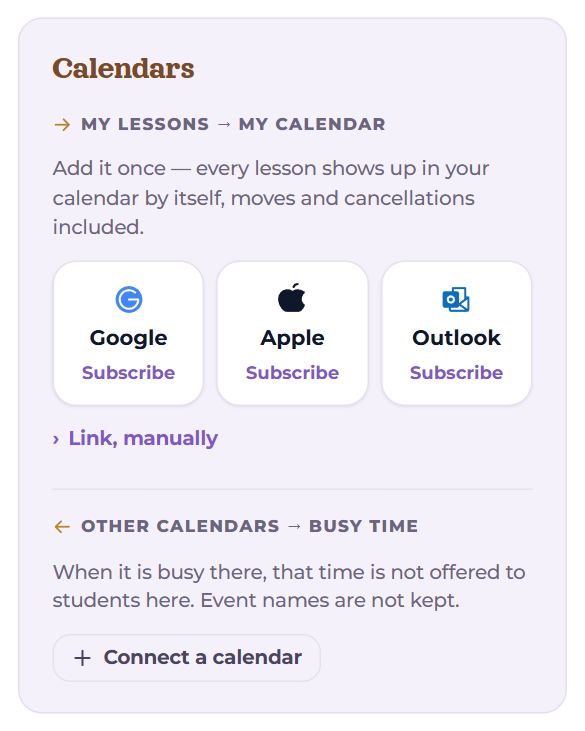
My lessons → my calendar
The Google, Apple and Outlook buttons — “Subscribe” in one tap. After that every confirmed lesson shows up in your calendar by itself, moves and cancellations included. Once your calendar reads the subscription, it says “Subscribed” and when it last read it. “Link, manually” — the link itself, to add by hand, and “Make a new link (the old one stops working)”.
Other calendars → busy time
Your other calendars, from which Memova takes only busy time: when it is busy there, that time is not offered to students here. Event names are not kept. “Connect a calendar” → pick Google, Apple or Outlook (where to find the link is said under it) → iCal address and a name → “Add”. By each calendar: how many busy intervals and when it was updated, “Update now” and a bin; if a calendar cannot be read, the reason is in red.
Booking rules
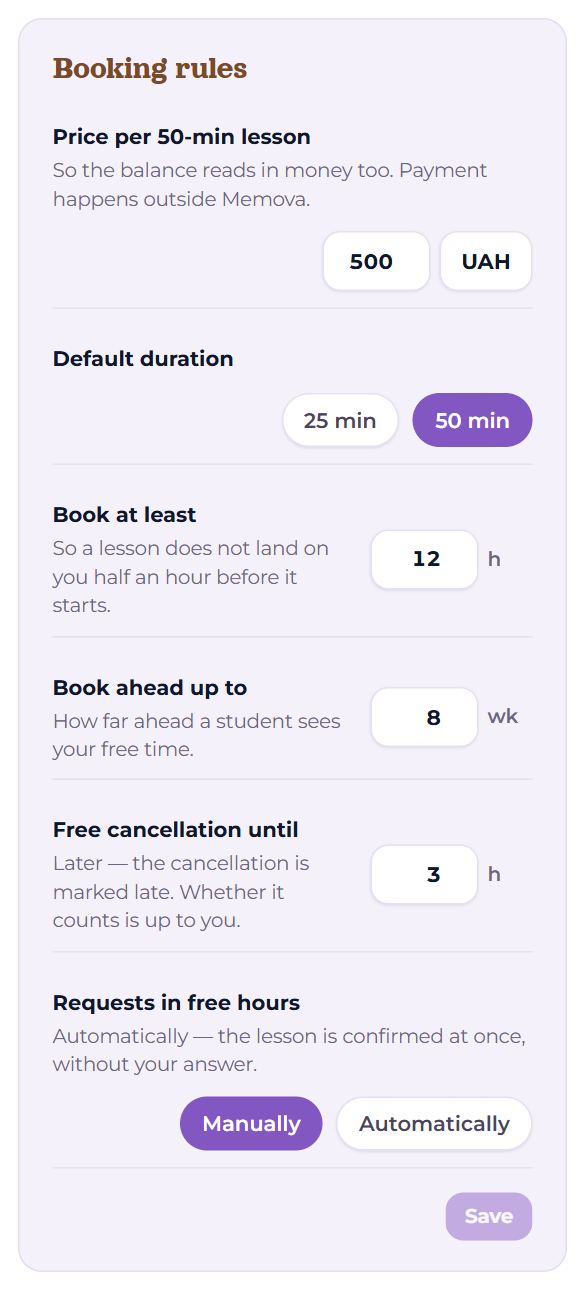
- Price per 50-min lesson and currency — so the balance reads in money too; 25 minutes cost half. The same price is on your teacher card.
- Default duration — 25 or 50 minutes: the booking dialog starts from it.
- Book at least … h — so a lesson does not land on you half an hour before it starts.
- Book ahead up to … wk — how far ahead a student sees your free time.
- Free cancellation until … h — a later cancellation is marked late; whether it is deducted is up to you.
- Requests in free hours — Manually (you answer each request) or Automatically (a lesson in your free hours is confirmed at once).
The rules are saved by their own “Save” button under them.
Questions
- Students cannot book.
- Most often no hours are set, or they were not saved. Check “Weekly schedule” and press “Save”; then whether “Book at least” or another calendar closes the time.
- Why can I not set a lesson at 10:15?
- Lessons start only at :00 and :30 — which is why the bar snaps to the half-hour.
- A lesson did not show up in Google Calendar at once.
- Google re-reads subscriptions every few hours. The “Add to calendar” button by a lesson adds it at once.
- I am travelling to another time zone.
- Your hours follow your time zone: Settings → Study plan → Time zone. Change it there and lessons show at the new time.