Students and invitations
All your students in one table — who learns what, when the next lesson is, how the words go and who owes whom — and the ways to bring new ones in: a link, Telegram or a code.
Requests

Above the table are the people asking to become your students: from the teacher catalogue (with their message) or through your code. “Accept” and the student joins the table, and your schedule and chat with them open. “Decline” and the request goes away.
Under the requests are your own invitations nobody has answered yet: “… has not accepted the invitation yet”. As soon as the student agrees, they become a row of the table.
The students table

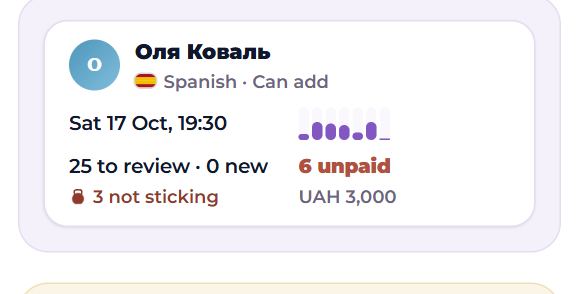
Above the table, how many students you have. A row opens the student’s page (see “A student’s page”). The columns:
- Student — the name, the language they learn and your level of access to their words (see below). A number by the name is unread messages from them. If the student deleted their account, it says “account deleted”.
- Next lesson — the day and time of the next lesson, marked “request” while it is not confirmed; or “not planned”.
- Week — the last seven days: on which days the student studied on their own, and how much.
- Words — how many words they have to review today and how many are new this week; in red, how many are not sticking.
- Balance — “2 ahead” (paid in advance), “1 unpaid” or “settled”; under it, the same in money when a price is set, and “claim for N waiting” when the student reported a payment you have not confirmed yet.
Halves happen: a 25-minute lesson is half a lesson on the balance.
On a phone each student is a card with the same facts.
Invite a student
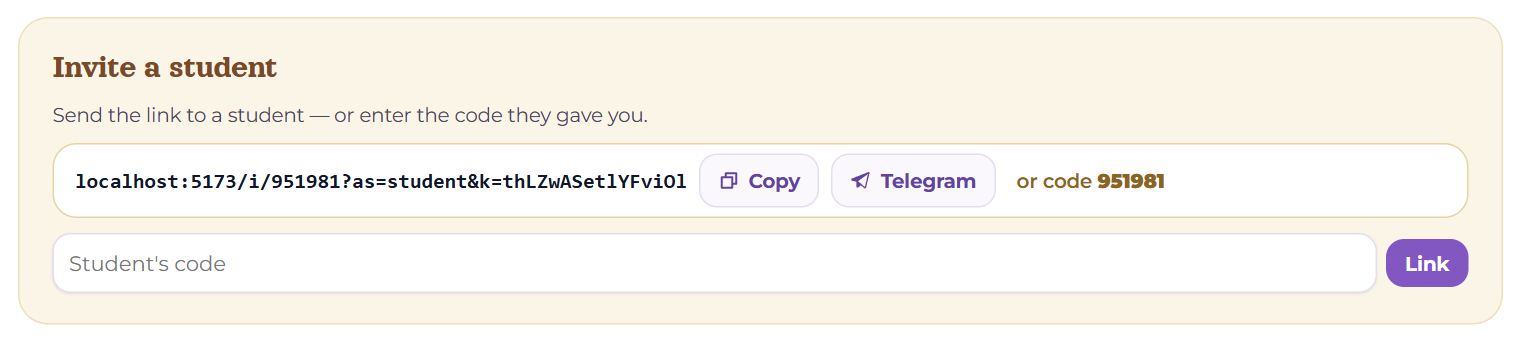
At the bottom of the page is the “Invite a student” block. The button of the same name on Today leads straight here.
- The link is your personal invitation. “Copy” puts it on the clipboard to paste anywhere.
- Telegram opens forwarding in Telegram with the link and a ready message on why to have lessons in Memova.
- “or code” — your six-digit code: a student can type it in their own lessons section.
The link and the code do not change, so one link invites as many students as you like.
A student’s code
Under the link are the “Student's code” field and “Link”: if a student gave you their code, enter it. The student gets an invitation and has to accept it — until then you see “has not accepted the invitation yet”. Everyone finds their own code in Settings → Teachers and students.
What a student sees behind the link
Without an account
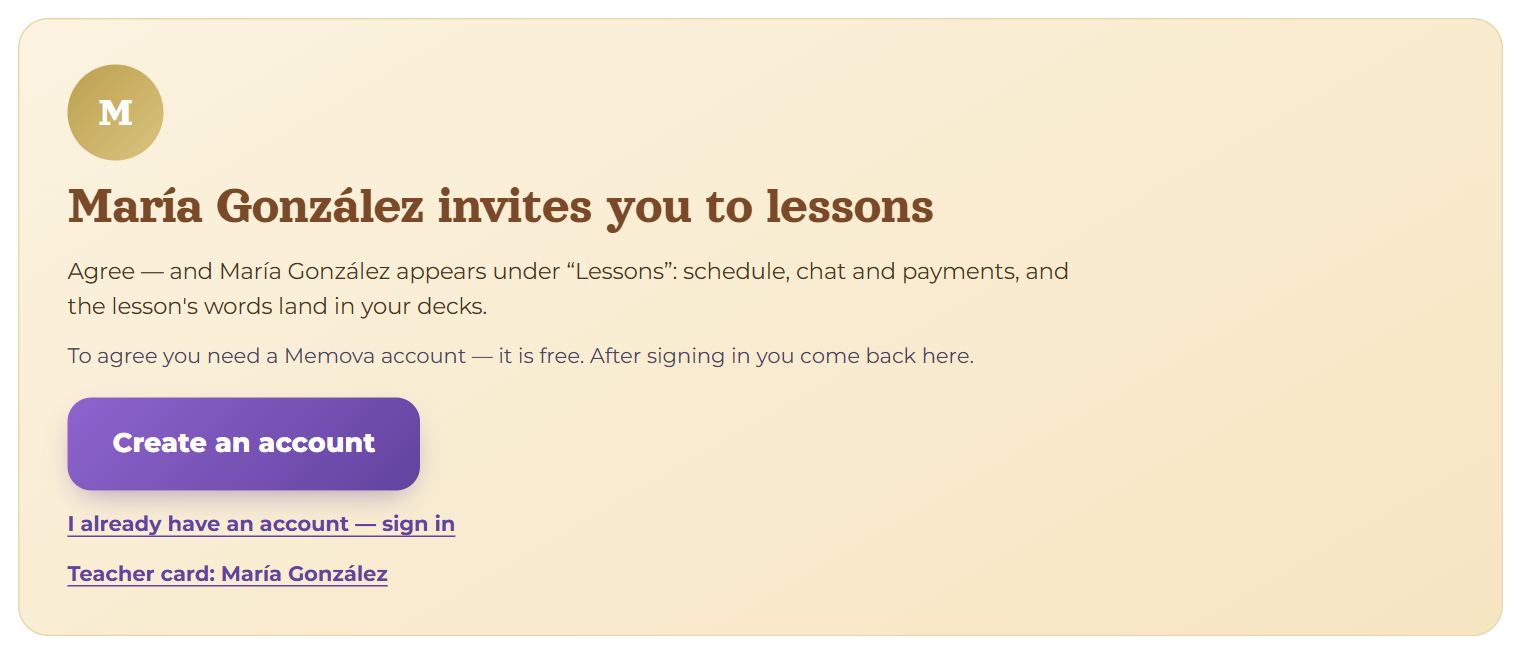
Someone without an account sees your photo, “… invites you to lessons” and what appears once they agree. Then:
- “Create an account” — sign-up (as a student straight away), or “I already have an account — sign in”;
- as soon as the account is made, you are linked — the student appears in your table, with nothing to confirm;
- the student still has to confirm their email; the email can be opened on another device too.
If your card is published, there is also a link to it under the buttons — “Teacher card: …”.
With an account
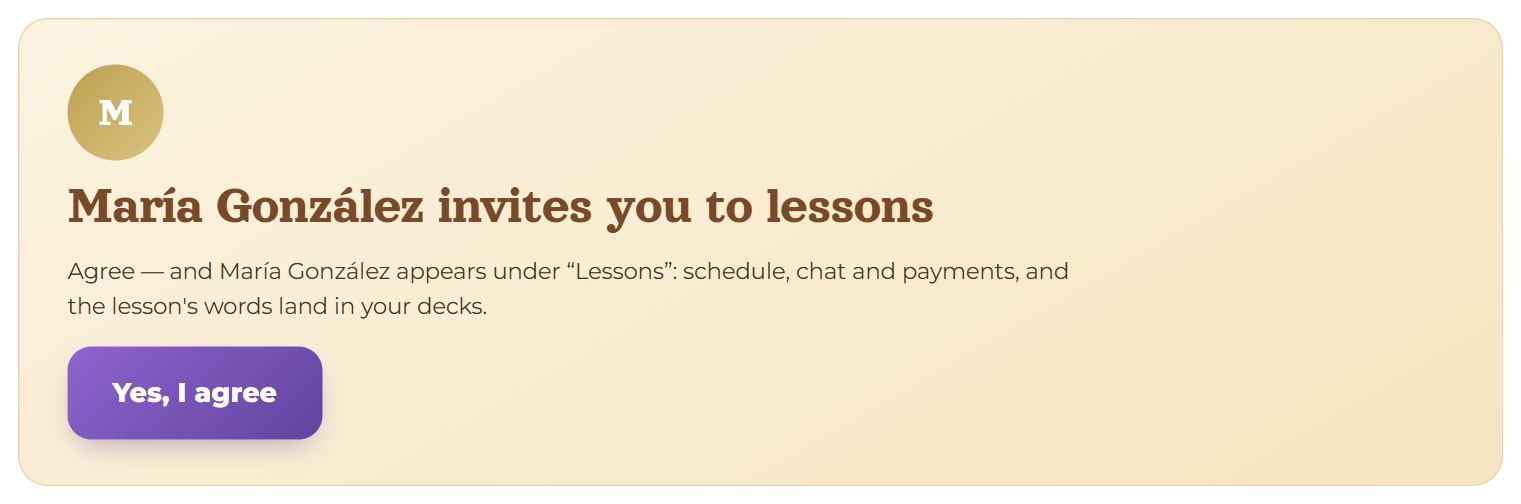
Someone already signed in sees one button — “Yes, I agree”. After it you are linked at once: the student sees “Done — … is in your “Lessons””, and you see their row in the table. A request already waiting between you is accepted by it too. The other cases this page shows:
- you are already linked — “You and … are already linked” and “To lessons”;
- you opened your own link — “This is your own invitation”;
- the link is broken or the code is not found — “The invitation didn't work”.
Access to words
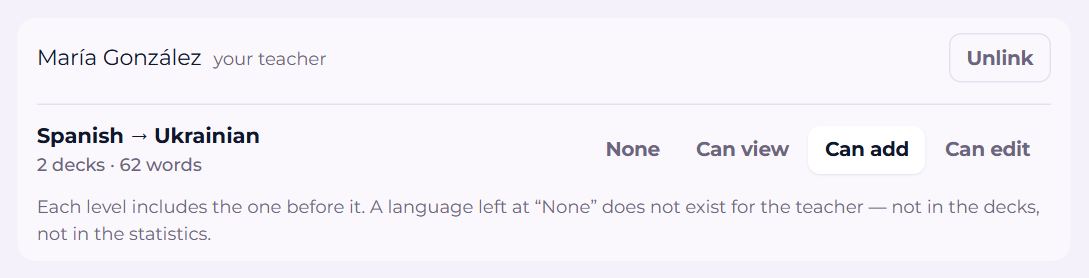
What you see of a student’s words is the student’s choice — in their Settings → Teachers and students, under your name, separately for each language pair:
- None — the language does not exist for you: no decks, no statistics;
- Can view — decks, words, statistics, read only;
- Can add — plus adding words to their decks (from a lesson and the chat too);
- Can edit — plus editing and deleting words, creating and renaming decks.
Each level includes the one before it. Your current level shows in the table under the student’s name and in the “Access to words” block on their page. Until the student opens a language, it says there that access is given in their settings.
Questions
- The student says they typed my code, but they are not in the table.
- A code typed by hand is a request to you: accept it at the top of the page or on “Today”. The link links at once and the code does not, because six digits can be guessed.
- I cannot see the student’s words.
- The student has not given access to that language yet, or left it at “None”. Ask in the chat — it is their setting, not yours.
- The table is empty, though we are linked.
- The link was probably made the other way round, with the other person as the teacher. The page then says so plainly: unlink in settings and link again as “I am the teacher”.
- Can I remove a student?
- Yes: Settings → Teachers and students → “Unlink” by their name.