Today
A teacher’s first page: today’s lessons, everything that waits for your answer, the students worth a look, and a short list of your students. Until you have students, it shows the first steps instead: your card, the invitation and your rules.
Top of the page

- Above the title, the date; the title says how many lessons you have today, and under it who is next and when (or that the day is free of lessons).
- “Invite a student” leads to Students, straight to the invitation link.
- “Lesson” opens Schedule, where you can propose a lesson to any of your students.
Day and week
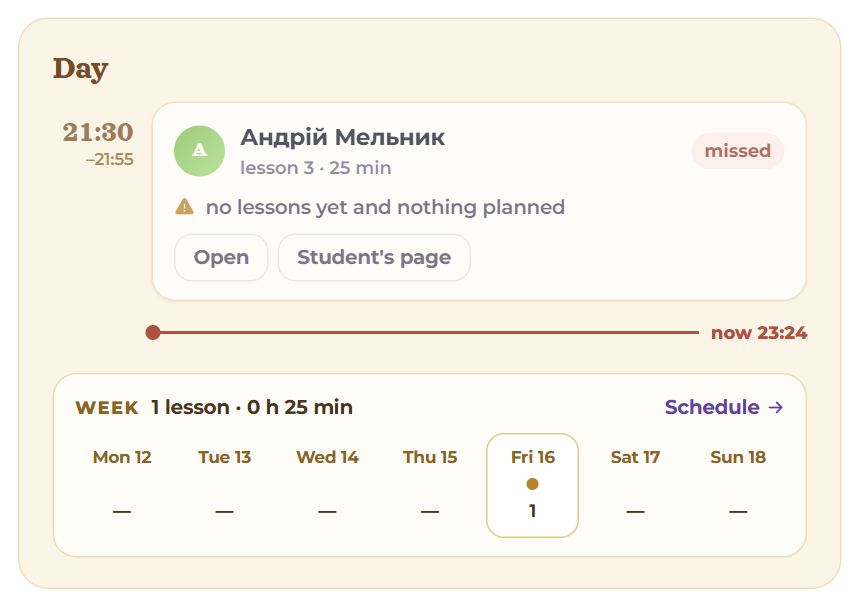
The “Day” block is today’s lessons in order, with a line “now 14:20” where you are in the day. Each lesson shows:
- on the left, its start and end; next to it, the student, the lesson’s number with them, its length and when the room opens (10 minutes before the start);
- marks: “done”, “missed”, “request” (not confirmed yet), “unpaid” (no payment covers it);
- under it, the lesson’s note — or, without one, what is worth knowing about the student: not studying for a while, words not sticking, money owed;
- “Enter the lesson” becomes active once the room is open; until then the button says when you can join. A past lesson has “Open” instead (the lesson with its words and notes), and “Student's page” leads to the student’s page.
If you also learn with somebody, those lessons are here too, marked “Your teacher · …”: a person has one set of hours.
At the bottom of the block is “Week”: the seven days of this week with a dot for each lesson, the total of lessons and hours, and a link to “Schedule”.
Waiting for you
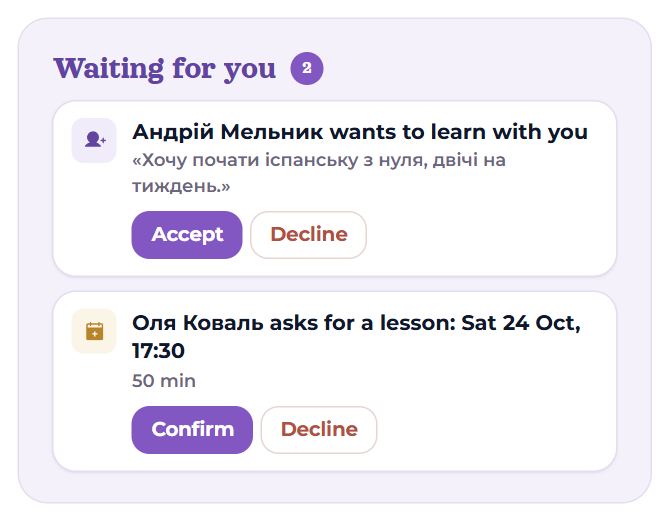
“Waiting for you” gathers everything that needs your answer, and you answer right here. The number by the title is how many there are. When there is nothing: “All answered.”.
- Someone wants to learn with you — a request from the catalogue or through your code, with the student’s message if there is one. “Accept” and the student joins your list; “Decline” and the request goes away.
- A student asks for a lesson — when, how many minutes, the note; for a move, the time it moves from. “Confirm” or “Decline”. Until you answer a move, the old lesson holds.
- A student says they paid for N lessons — confirm it and the lessons go on the balance, or “Not received”.
- New messages — how many and from whom; the buttons with names open the chat on the student’s page.
A lesson request nobody answered before its start expires — which is why requests are always at the top here.
Worth a look
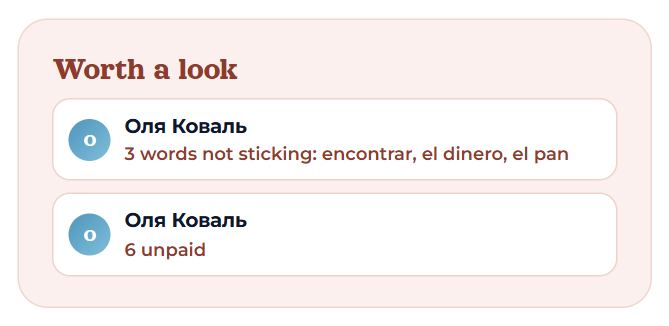
“Worth a look” is what your students’ own work says, up to six lines. Each line leads to the student’s page. What lands here:
- the student has not studied on their own for 3 days or more;
- some words are not sticking (forgotten several times in a row) — the first three are named;
- no lesson for over two weeks and nothing planned — or no lessons at all yet;
- the student owes so many lessons;
- your card is not in the catalogue yet — the line leads to My card.
When there is nothing to say, the block is not there.
Students

Your first six students in the same table as on Students (see “Students and invitations”): next lesson, the week of study, words, balance. By the title, how many students you have and how many more are asking to join; “All students” opens the full list. A row leads to the student’s page; a number by a name is unread messages from them.
A new teacher’s first screen
Until you have students, “Today” shows the first steps instead of the day. “Students” is then a short page with the requests and the invitation. Requests from students, if any have come, stand above everything with “Decline” and “Accept”; invitations you sent that have not been answered are under them.
Start with your card
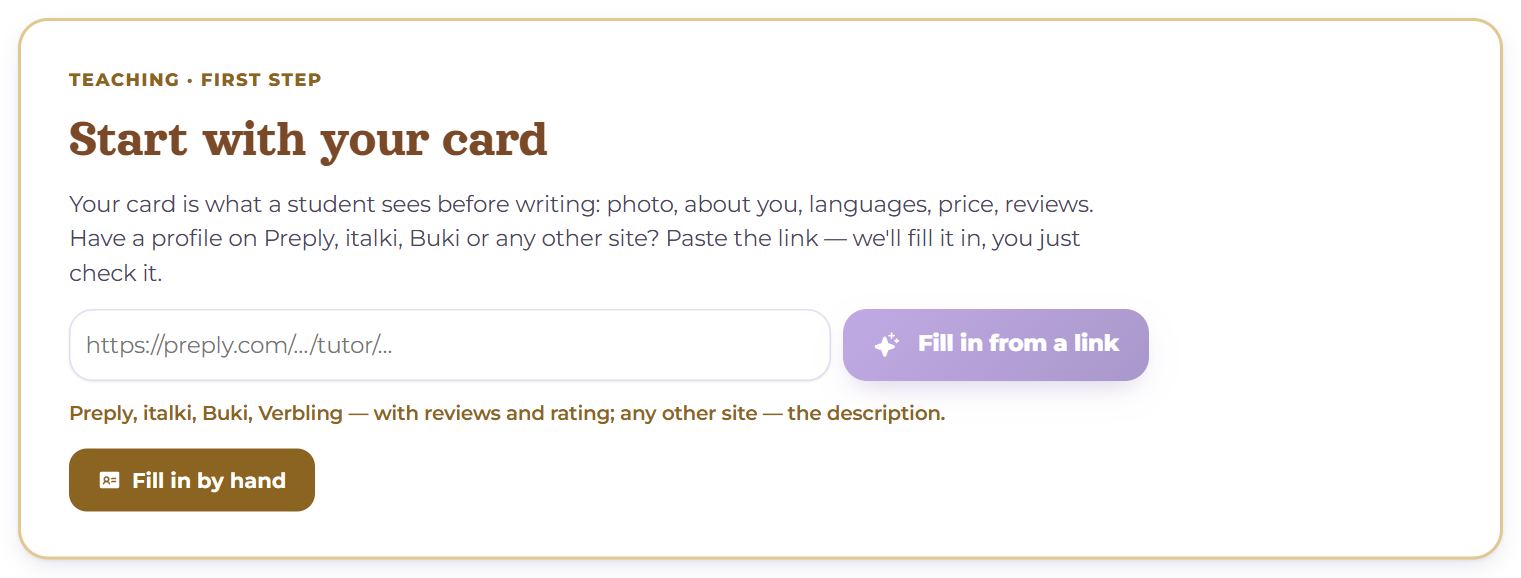
Your card is what a student sees before writing. If you have a profile on another site, paste its link in the field and press “Fill in from a link”: My card opens and reads the page at once. Nothing is saved until you check it and press Save (see “My teacher card”). Otherwise, “Fill in by hand”; once the card is started, “Finish the card”. A published card turns the block into “Your card is in the catalogue” with “Open the card”.
Invite your students
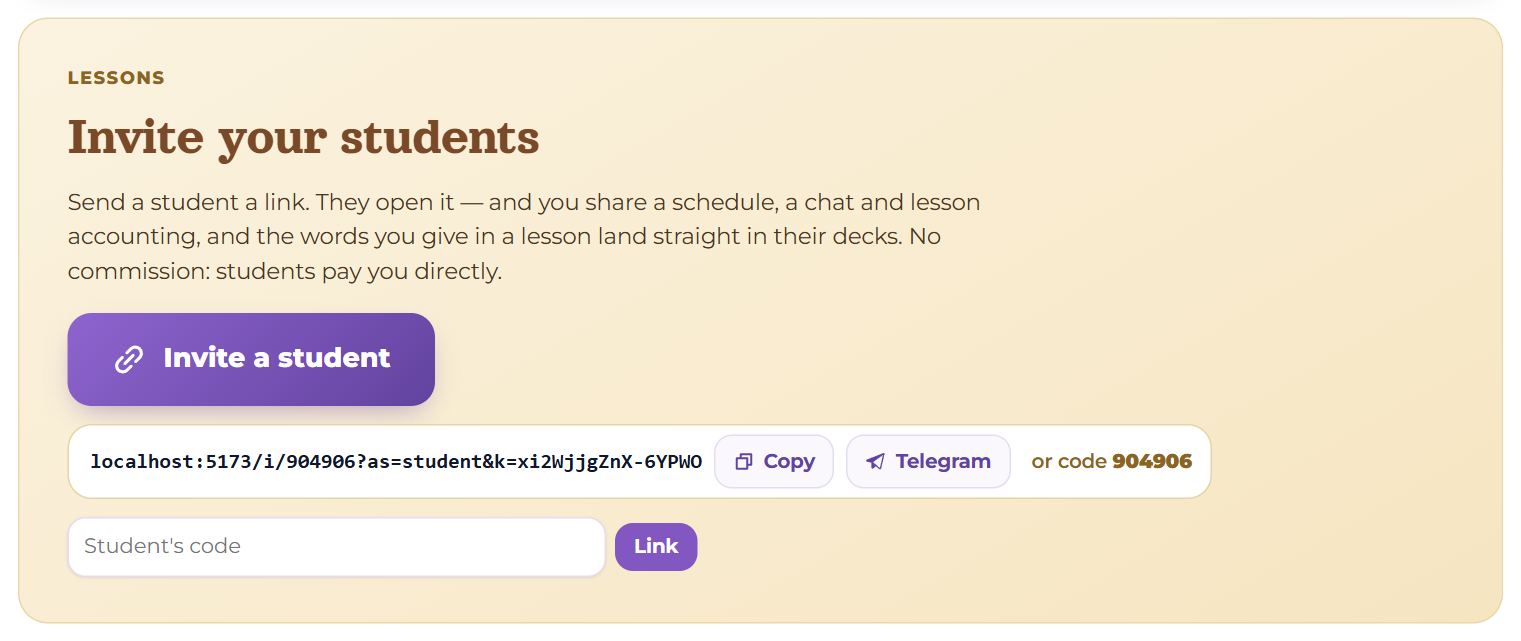
- The big “Invite a student” button opens Share on a phone and copies the link on a computer.
- Under it, the link itself, “Copy”, Telegram (opens forwarding with a ready message) and “or code” — your code, for a student to type in.
- The “Student's code” field and “Link” — when a student gave you their code. They get a request and have to accept it.
What a student sees behind the link is in “Students and invitations”.
How it works
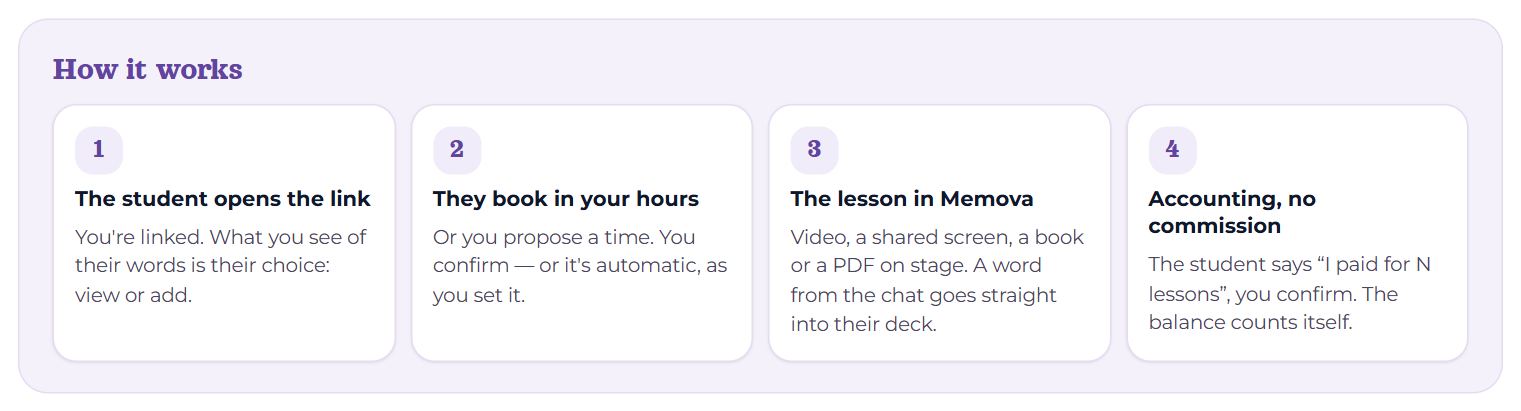
Four steps: the student opens the link, books in your hours, the lesson happens in Memova, and the accounting takes no commission.
Your rules and “No commission”
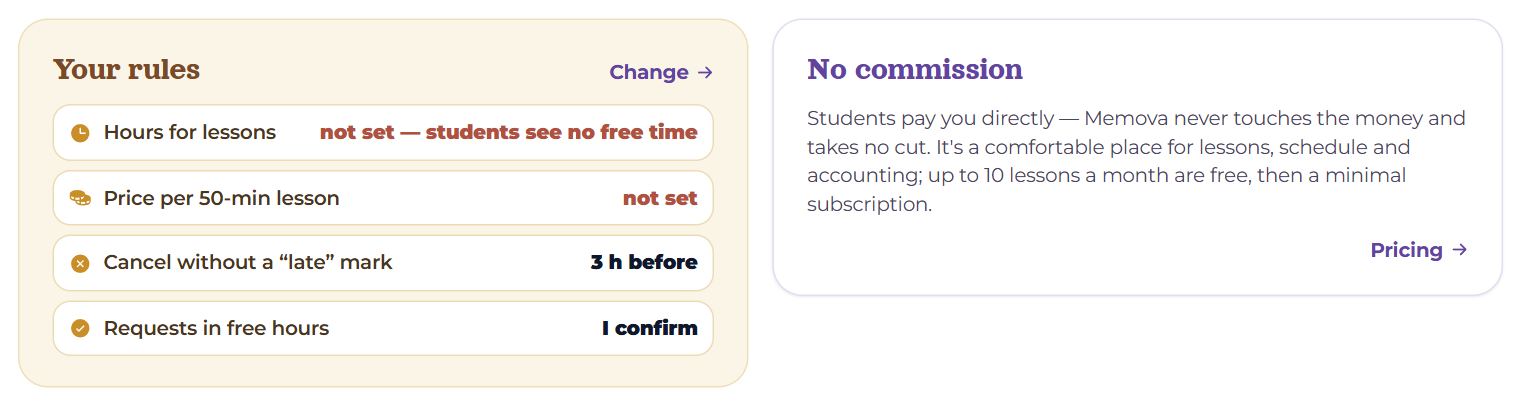
- “Your rules” — how things are set now: Hours for lessons (hours a week), Price per 50-min lesson, Cancel without a “late” mark, Requests in free hours. Whatever a student needs to book and is missing (hours or a price) is marked. “Change” leads to Settings → Schedule and lessons.
- “No commission” — students pay you directly; Memova never touches the money. A link to “Pricing” and your code.
Questions
- Why is “Enter the lesson” grey?
- The room opens 10 minutes before the start and closes 15 minutes after the end. Until then the button says when you can join.
- A student asks to join and I do not want to — will they be told?
- “Decline” just removes the request; the student gets no separate message about it.
- I teach and learn — whose lessons are here?
- All of yours: the ones you teach, and the ones marked “Your teacher” where you learn. So you never book two people into one hour.
- I have students, but the page shows the first steps.
- The link may have been made the other way round, with the other person as the teacher. The “Students” page then says so and explains how to swap the roles.