My teacher card
Your card is what a student sees before writing to you: photo, about you, languages, price, reviews, hours. It is in the teacher catalogue and at its own link, which opens without an account. If you have already written about yourself on Preply, italki or another site, the card can be filled in from there.
Top of the page

It opens from Today, from the teacher menu, or with “My card” in the catalogue. The name and photo on the card are the ones in settings; the price is the one students book lessons at.
- “View” — the card as students see it (appears after the first save).
- “Save” — active once something has changed; the same button is at the bottom of the page, next to “Unsaved changes”.
Until you press Save, none of the card’s fields change — neither what you typed nor what was taken from another site.
Publishing and address
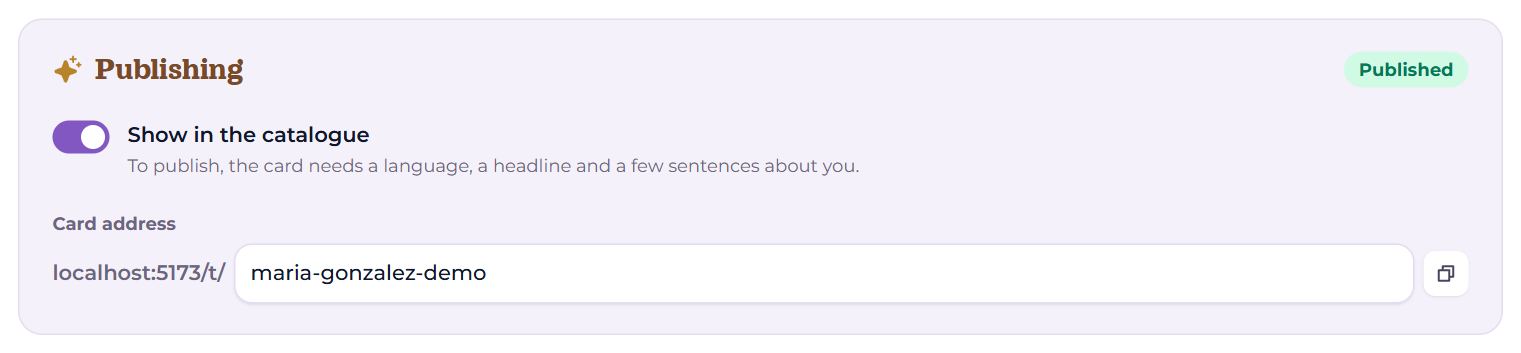
- To the right of the title, the state: Published or Draft.
- “Show in the catalogue” — switch it on and save for the card to appear in the catalogue. It needs at least one language you teach, a headline and a few sentences about you (40 characters or more). Without them, saving says what is missing.
- “Card address” — the end of the card’s link: Latin letters, digits and hyphens. The button next to it copies the full link. If the address is taken: “This address is taken.”.
Only you see a draft — with a note that it is not published.
Bring it over from another platform

- Paste the link to your own profile (not a search or a list) and press “Read”. A link pasted on the first screen of Today is read by itself as soon as this page opens.
- What was found is listed: headline, description, languages, price, photo, video, education.
- “Fill empty fields” — only where it is still empty; “Replace everything” — over what is there. The price moves over if it is in your currency or there is no price yet.
- Check the fields and press “Save”.
- Ratings and reviews are taken only from Preply, italki, Verbling and Buki, and only through a link — and they are saved at once, with a link to the source. From other sites only the description is taken.
- The photo: if you have none yet, it comes along with the rest. If you have one, both are shown side by side with “Replace photo”. The photo changes at once, on the card and on the account.
- Some sites hide their pages from servers. Then “Upload a saved page” appears: open your profile in the browser, save the page (Ctrl+S) and upload the file. Ratings and reviews are not taken from a file, since a file can be edited.
Under the block is “On the card from other platforms”: each source with its rating, number of reviews and lessons, and the date it was read. The “on the card” switch hides or shows them on the card; “Read again” updates the numbers; the bin removes the source.
About you and the photo
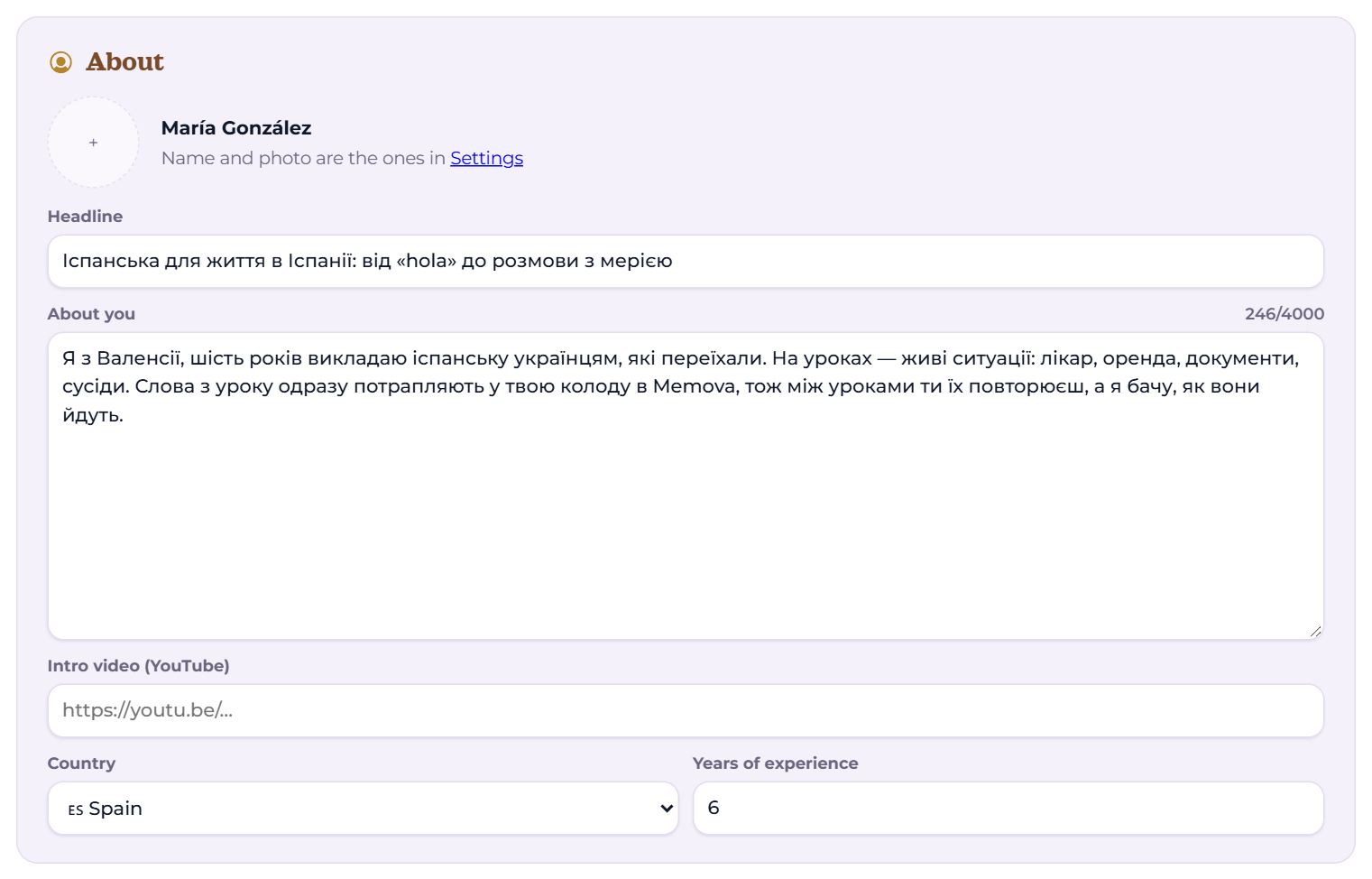
- The photo — tap the circle to upload one. It is the account’s photo: it changes at once and everywhere. The name is changed in Settings.
- Headline — one line up to 120 characters, shown in the catalogue under your name.
- About you — up to 4000 characters: who you are, how you teach, whom you work best with. The catalogue shows the beginning.
- Intro video (YouTube or Vimeo) — a YouTube link; the video plays right in the card.
- Country and Years of experience.
Languages
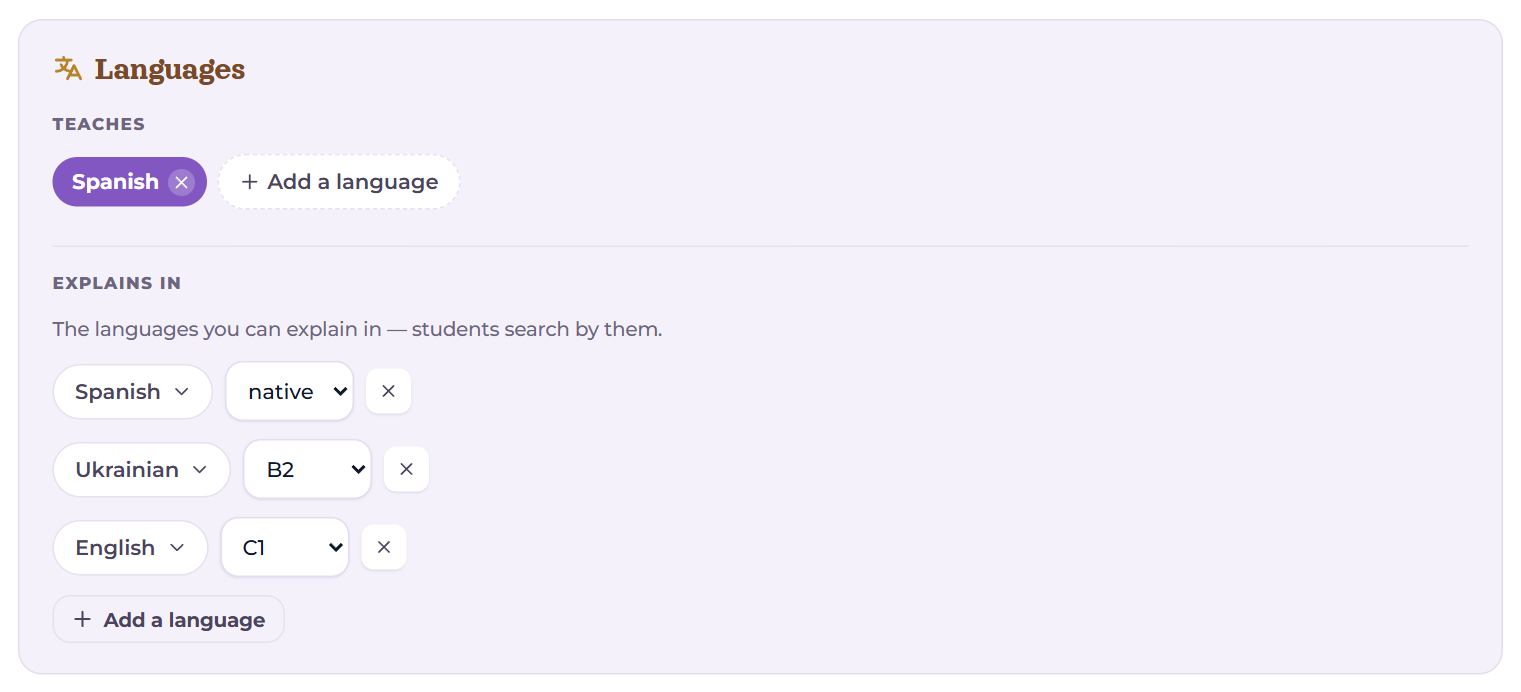
- Teaches — up to five languages. Students search the catalogue by them.
- Explains in — the languages you can explain in, with a level (from native to A1), up to eight. “Add a language” opens the list of languages, the level is picked on the chip itself, the cross removes one.
Specialties
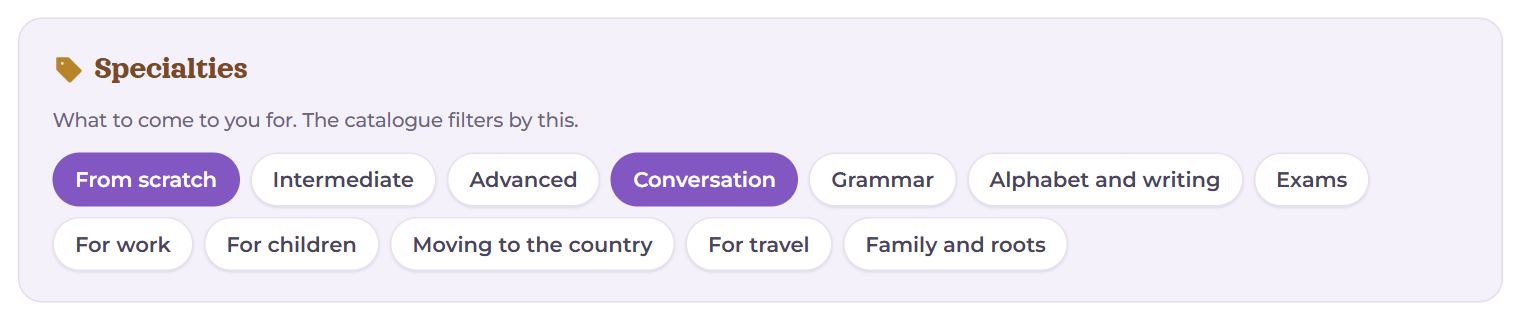
What to come to you for: from scratch, conversation, grammar, exams, for children, moving to the country… The chips you pick stand on the card under your languages.
Price and trial lesson
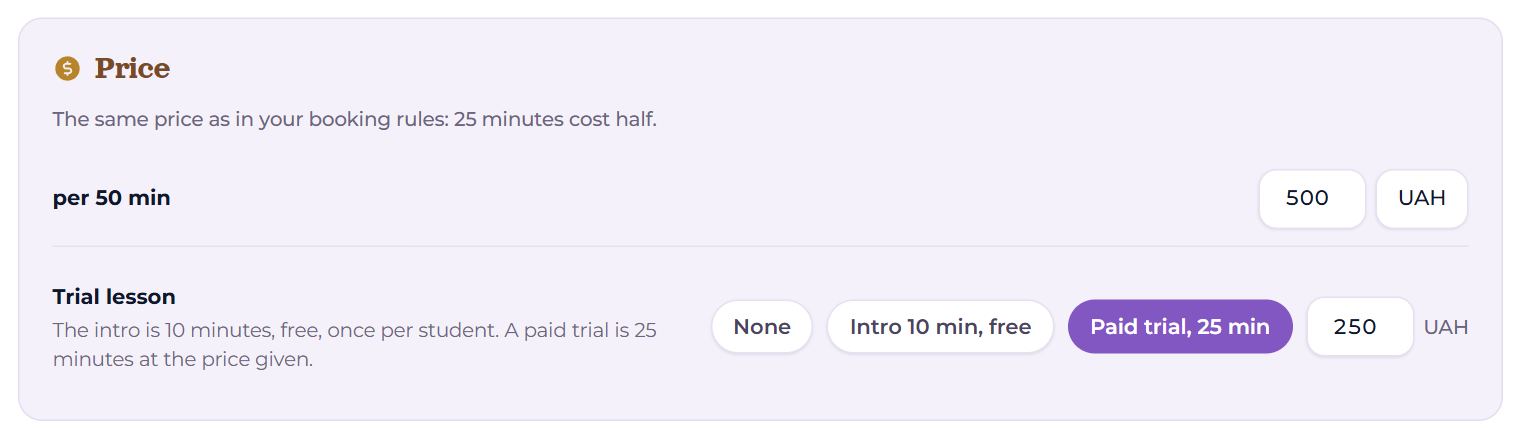
- per 50 min and the currency — the same price as in Settings → Schedule and lessons; 25 minutes cost half. Without a price the card says “Price on request”.
- Trial lesson: None, Intro 10 min, free (once per student) or Paid trial, 25 min at its own price.
Education and experience
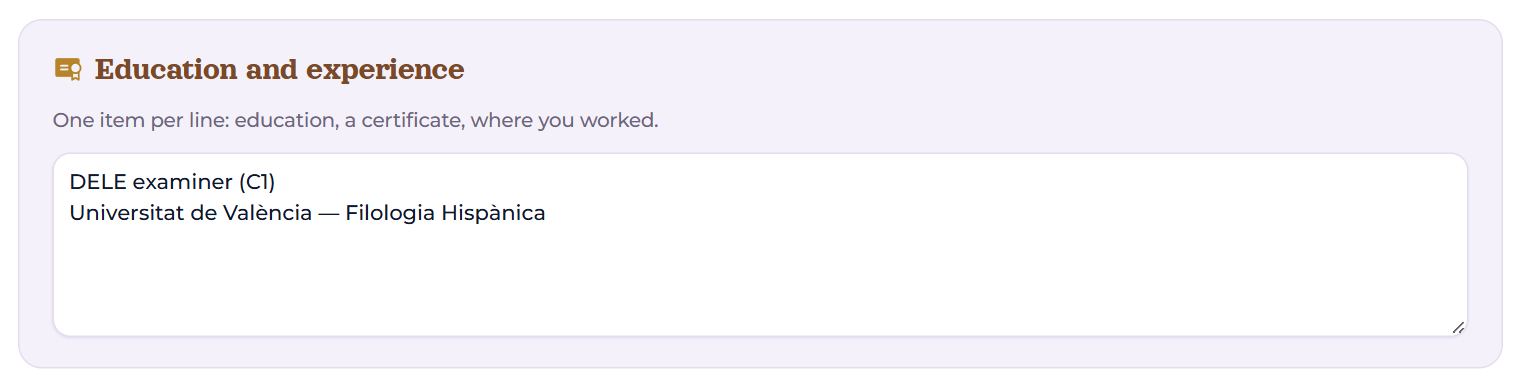
One item per line: a university, a certificate, where you worked. The card shows them as a list.
How students see the card
In the catalogue
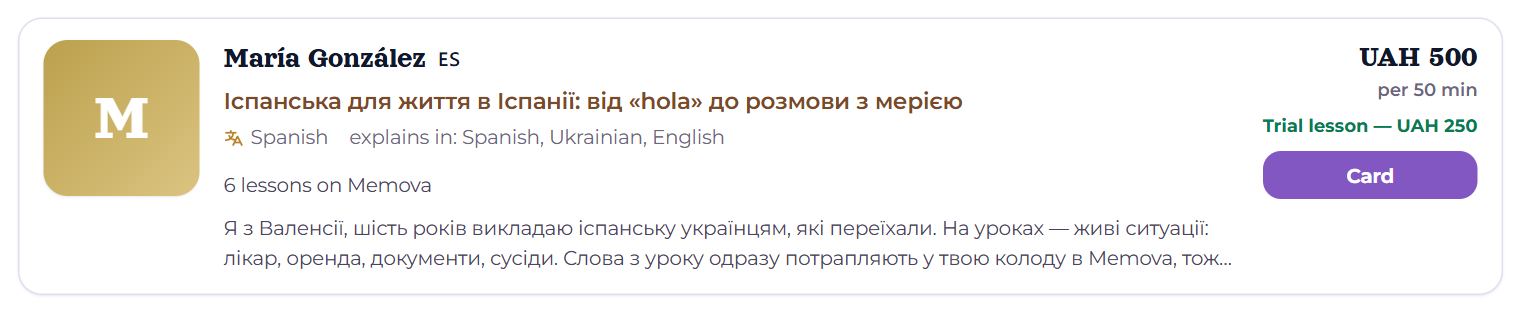
The Teachers catalogue shows published cards: photo, name, country flag, headline, languages, ratings, how many lessons on Memova, whether there is a video, the beginning of the description, the price and the trial lesson. Students filter by the language you teach and the language you explain in. The default order is “With reviews first”: higher up are those with a better rating and more reviews, more lessons, a video and a photo; or “Newest first”.
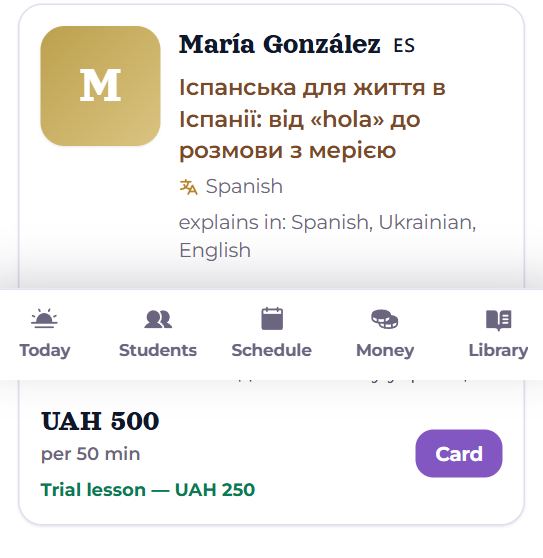
The card’s page
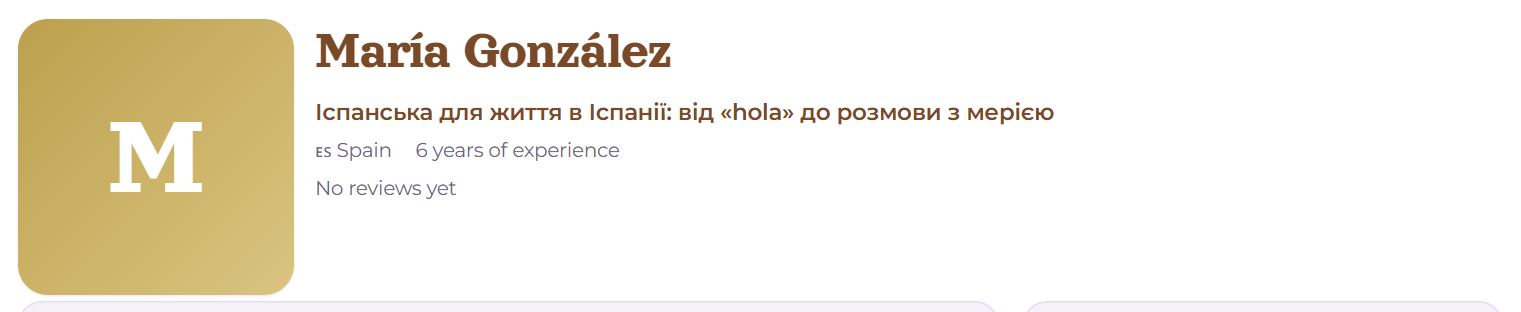
“Card” opens the card itself: photo, name, headline, country, what time it is for you now (if the student’s time zone differs), years of experience, and ratings with links to their sources. Below: about you and the video, languages, specialties, education, reviews.
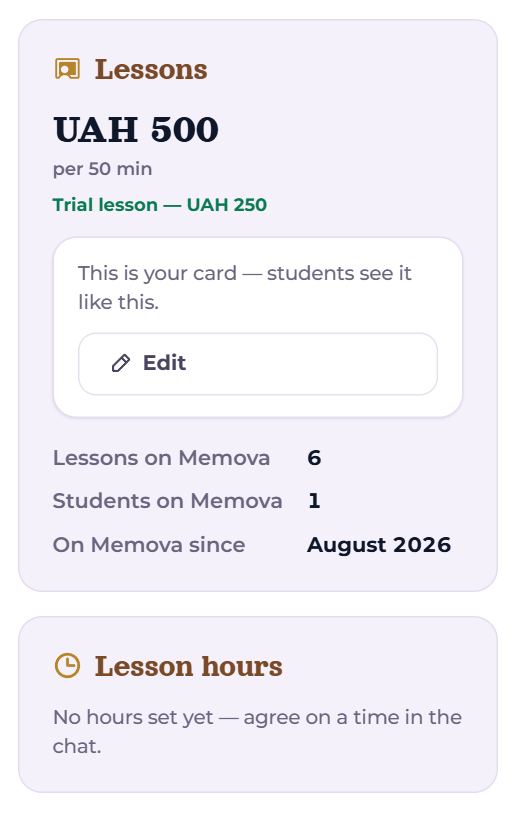
At the side is “Lessons”: the price, the trial lesson and a button to write to you (a request you accept on Today); how many lessons and students on Memova and since when you have been here. Below it, “Lesson hours”: your weekly hours on the student’s clock. On your own card you see “This is your card — students see it like this.” and “Edit” instead of the button.
Reviews

A review on Memova can be left only by a student who has had at least one lesson with you: a score from 1 to 5 and a text; the student can change or delete their own review. Under them are the reviews brought over from other platforms, by source, each with a link to the profile so anyone can check. While there are none: “No reviews yet.”.
Questions
- Why will the card not publish?
- It needs a language you teach, a headline and at least a few sentences about you (40 characters or more).
- Preply will not give the page.
- Save your profile in the browser (Ctrl+S) and upload the file. The description and photo come over; ratings and reviews only through a link.
- I changed the price on the card — what about the schedule?
- It is one price: it changes in both places.
- Can people without an account see the card?
- Yes, a published one — in the catalogue and at its link. To write to you they have to sign in.