Teacher catalogue
Teachers who give lessons on Memova, with prices, languages, hours and reviews. Here you choose a teacher and write to them — and once they accept, the chat, booking and payment record open up.
Where it is
- “Find a teacher” on the Lessons page — at the top, under your list of teachers, and, while you have no teacher, in the “Looking for a teacher?” card.
- The catalogue and the cards open without an account too: a teacher can share a link to their card anywhere.
Filters

- “Teaches” — the language you are learning;
- “Explains in” — the language the teacher explains in (Ukrainian, for example);
- “Order” — “With reviews first” or “Newest first”.
At first everyone is shown. The filters go into the page address, so a filtered list can be passed on. If nobody is found, the page says so, for example “No published cards yet.”
A teacher in the list
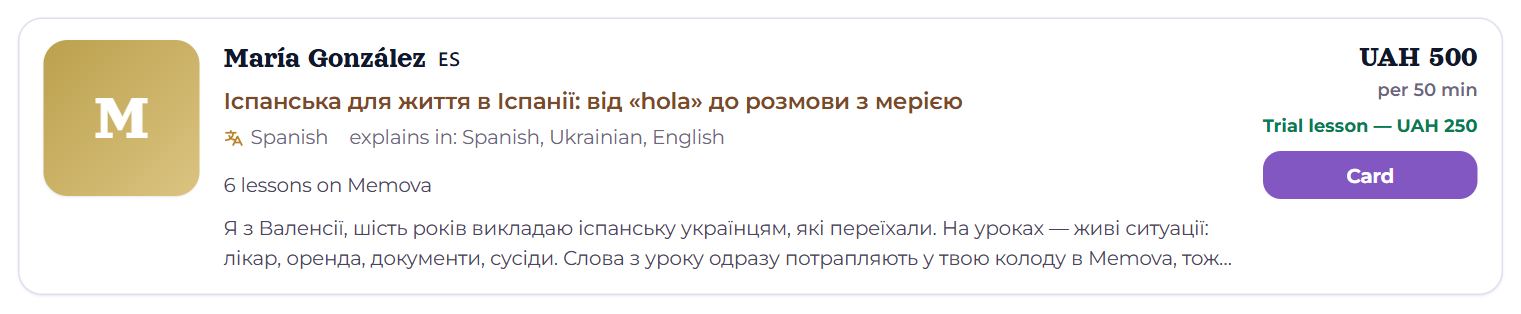
- Photo, name, country flag, a short headline from the teacher.
- The languages they teach, and “explains in: …”.
- Ratings (up to two, each with the name of its source), how many lessons they have given on Memova, and a “Video” mark if there is an intro video.
- The start of their story about themselves.
- On the right, the price “per 50 min” or “Price on request”, and the trial lesson: “Intro lesson, 10 min — free” or “Trial lesson — 250 UAH”.
- “Card” (or the photo or the name) — the teacher’s card.
Why there are few teachers
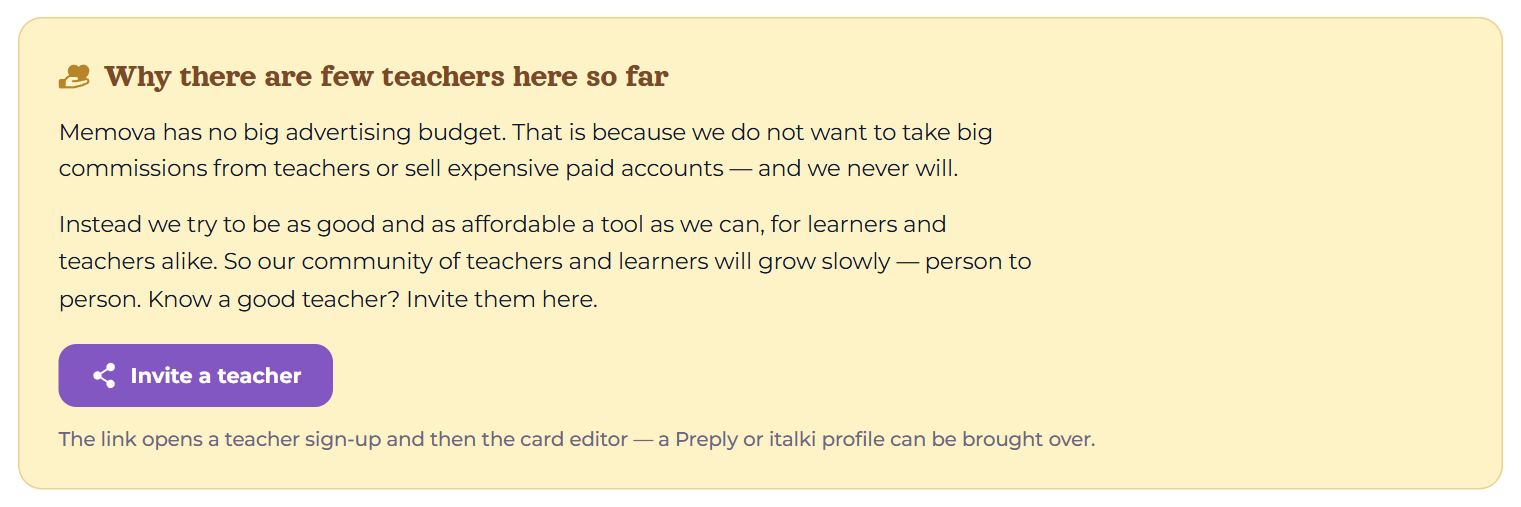
Under the list is “Why there are few teachers here so far”: Memova does not advertise, so teachers come when someone tells them. The “Invite a teacher” button opens the Share menu on a phone, and on a computer copies the invitation with its link. The link opens a teacher sign-up and then the card editor — a Preply or italki profile can be brought over.
Teacher card
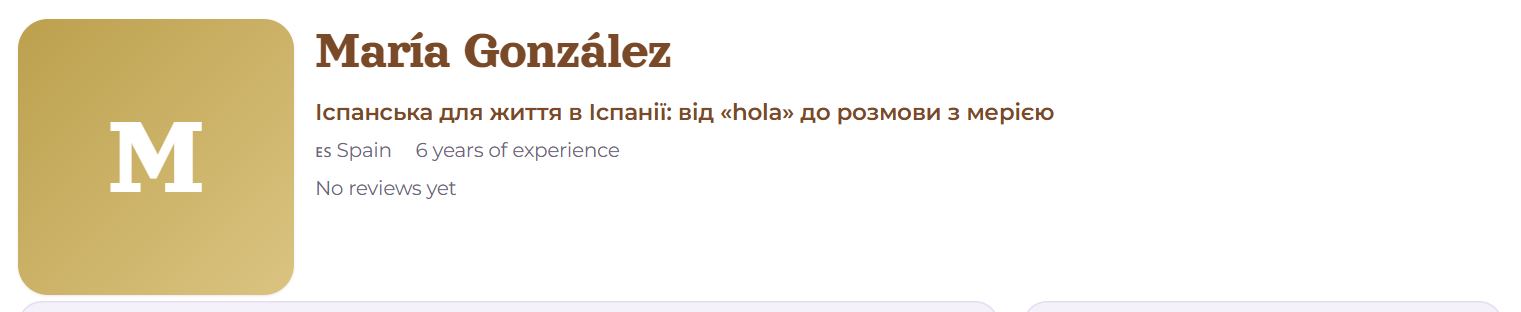
- At the top, “Teachers › name”, back to the catalogue.
- Photo, name, headline, country, “it is 21:30 now where the teacher lives” — their time of day, if you are in different time zones — and years of experience. Under them, the ratings with their sources.
- “About” — their story, and a video if the teacher added one.
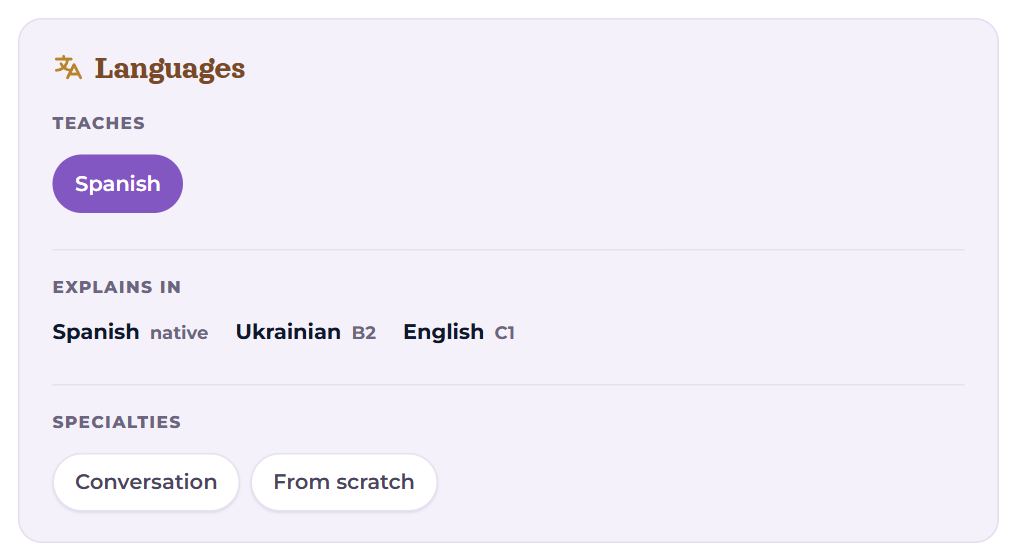
- “Languages”: “Teaches”, “Explains in” with the level (native, B2, C1…), “Specialties”.
- “Education and experience” — diplomas, certificates, where they studied and taught.
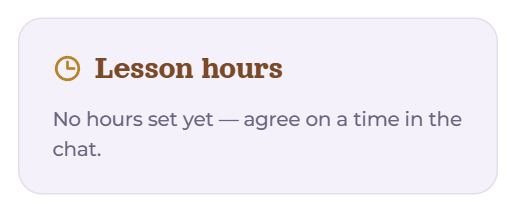
“Lesson hours” — the days and hours the teacher gives lessons, already moved to your time. The actual free slots show when you book. With no hours set: “No hours set yet — agree on a time in the chat.”
Ratings and reviews
Every rating says where it comes from: Memova — from students here; Preply, italki and others — brought over by the teacher from their profile there. Next to an imported rating is a link to that profile, so anyone can check it is the same person and the same numbers.
- In the “Reviews” block, Memova students’ reviews come first, then each platform’s on its own: “From Preply” with the link, the rating, how many reviews, lessons and students there, and when they were read. Four reviews are open; “Show all (8)” opens the rest.
- “Write a review” appears once you have had a lesson with this teacher. One to five stars, a few words, “Save review”. There is one review per pair: you can “Edit your review” or “Delete” it.
With no reviews yet: “No reviews yet.”
Write to a teacher
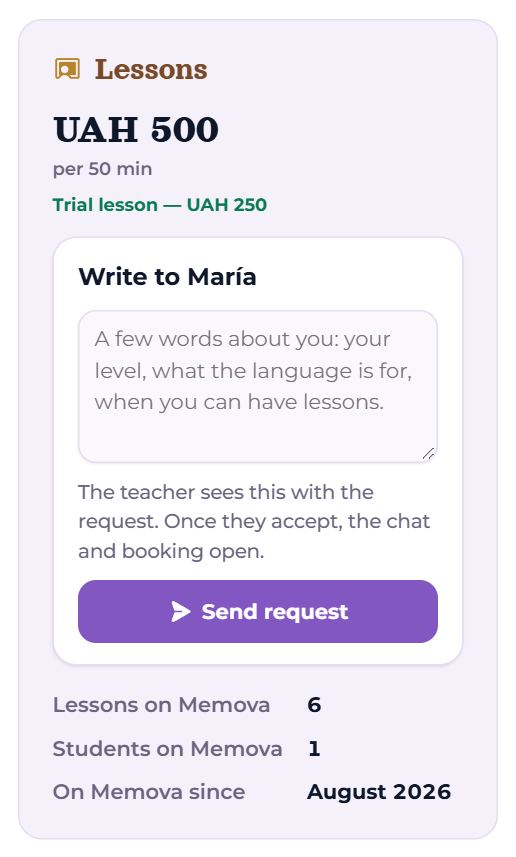
On the right, in the “Lessons” block, are the price and the trial lesson, and under them what you can do now:
- You are not linked to this teacher yet. The “Write to …” form: if the teacher teaches several languages, choose one; in the box, A few words about you: your level, what the language is for, when you can have lessons. “Send request”. The teacher sees this with the request. Once they accept, the chat and booking open.
- Request sent — the block says so until the teacher accepts. If it was the teacher who invited you, there is “Answer” next to it — it leads to “Lessons”, where you confirm the request.
- Without an account — you write all the same, and after “Send request” the card asks one thing only: Where should the answer go? Sign in with Google and the message goes at once; or leave your email and press “Get a link” — a mail arrives, and the click in it confirms the address, signs you in and sends the message. No password needed; the teacher’s answer comes to that same email. Your name, a password and the rest Memova asks later, on your first “My day”.
Below: “Lessons on Memova”, “Students on Memova” and “On Memova since”.
Book a lesson
If the teacher has set their hours, right under the card’s head is the “Free time” block — the free time of the next seven days, on your clock. Choose the length (10 min — when the teacher offers an intro), tap a time, and a summary with the price appears below:
- With an account — an optional note and “Book this time” (or “Book” when the teacher confirms automatically). The lesson goes into “Lessons”, the teacher is notified, and a request to become a pair goes with it.
- Without an account — the card asks: Where should the confirmation and the lesson reminder go? Google signs in and books at once; an email sends a mail, and the click in it confirms the address, signs you in and books. If somebody took that hour meanwhile, the card says so and shows the free time again. The lesson reminder comes to that email.
- The “Free time” block is folded to its title — a click on it (or “Choose a time” at the top of the card) opens the whole week of free time at once.
- Your lessons with this teacher stand right in the free-time grid, on their day and hour — “Your lesson”, confirmed ones in green, waiting ones dashed in gold. A click opens the lesson.
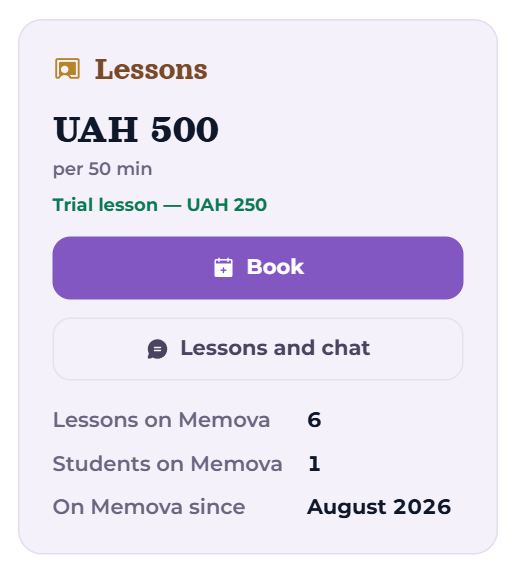
Once the teacher has accepted, two buttons appear in the “Write” block:
- “Book” — the booking window: the same seven days of free time, the length, the intro lesson, weekly lessons. All about it in “Booking a lesson”.
- “Lessons and chat” — your pair page with this teacher (see “Your page with a teacher”).
The intro lesson is 10 minutes to meet and agree how you will study. If the teacher makes it free, the price says “Intro lesson, 10 min — free”; if it is paid, “Trial lesson — …”.
On a phone
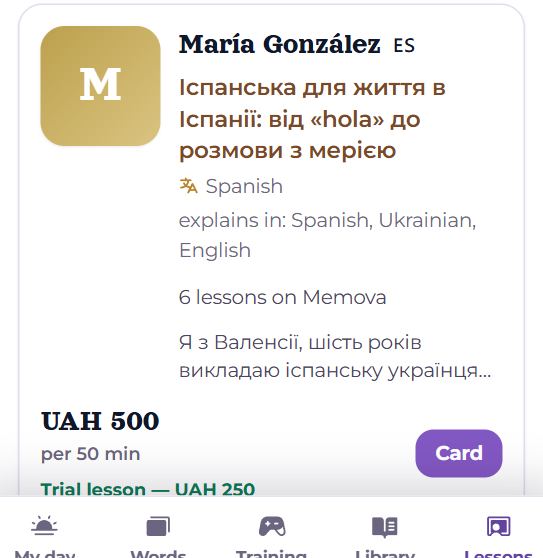
The filters stand one under another, and teachers are cards the full width of the screen. On a teacher’s card, the “Lessons” block (price and request) and “Lesson hours” come right under the photo, before the story.
Questions
- I already have a teacher, but they are not in the catalogue. How do I add them?
- You do not need the catalogue for that: invite them with the link on the “Lessons” page (see “Lessons and teachers”).
- Why is the price in hryvnias when the teacher is from Spain?
- The teacher chooses the currency. How to pay is in their payment terms.
- Is a rating from Preply real?
- It was read from the profile the link next to it leads to, and the date it was read is given. Check it through the link.