Catalogue
The workshop for words: every language together, as tiles or a table, with filters, search and actions on hundreds of words at once. It opens from the “Edit in the catalogue” button on the Words page.
Left column: what to show
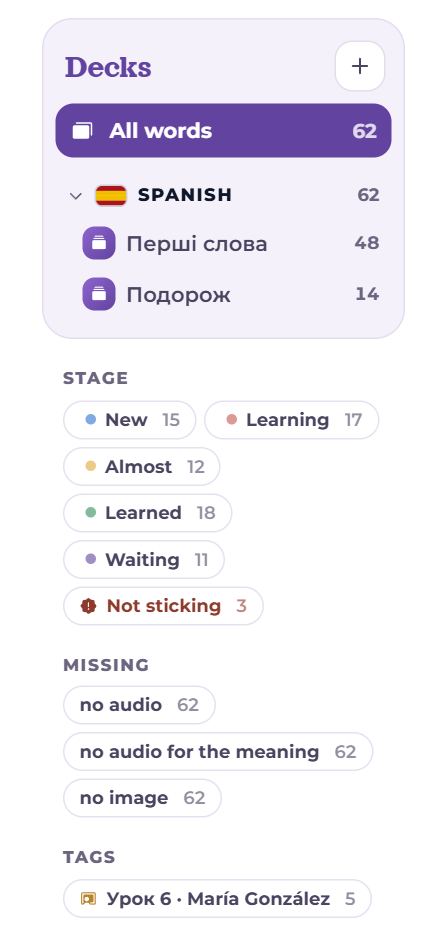
The filters add up: a deck + a stage + “missing” + tags + a search narrow the list together.
- Decks — all words, one whole language or one deck; decks are grouped by language under a flag. Click a language’s name for all its words; the arrow left of the flag folds the group. Click a language or a deck again to drop the filter. The “⋯” menu by a deck has the same actions as on Words, plus “Open in «Words»”. “+” makes a new deck (a name and a language pair).
- Stage — new, learning, almost, learned, waiting (due for review today) and not sticking; each with its count.
- Missing — words with no audio, no audio for the meaning, no image. The block appears only when there are such words.
- Tags — where a word came from: a lesson, a text, a video, or your own labels; several tags can be picked together.
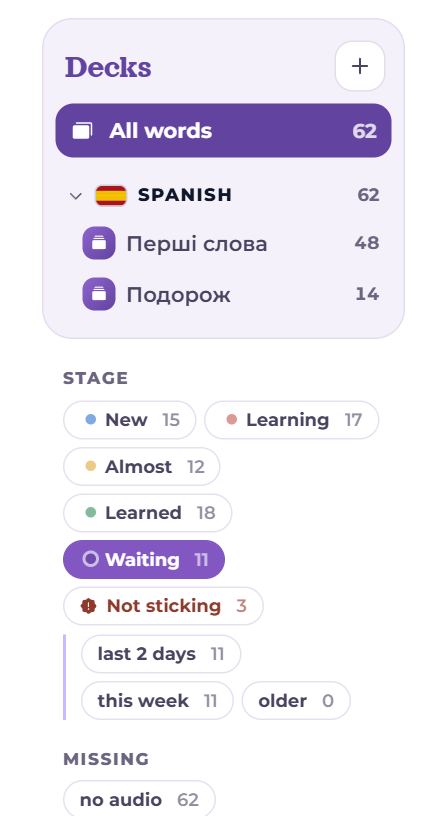
With “Waiting” picked, the pile’s cuts appear under it: last 2 days, this week, older — the same ones the review session offers. Words that are not sticking are not counted here: they are under “Not sticking”, and their tile says “to training” instead of “today”.
Search and view

- Search looks in the word, the translation, the example and the dictionary entry.
- Two view buttons: tiles (picture, word, translation, stage, when next, frequency) and table.
- Sorting the tiles: newest first, by frequency, by word, by translation, by interval, by lapses, due soonest. In the table, the column headers sort.
- “+ Word” adds a word in the panel on the right; with a deck picked, the word goes into it.
Found

- Found N — how many words match the filters.
- select all loaded — select everything shown, to apply an action to all of it.
- Export N words — exactly what was found, to a file (see “Import and export”).
- With the “no audio” or “no audio for the meaning” filter there is also “Voice all N”: speech synthesis gives sound to every word found, one after another, with a counter.
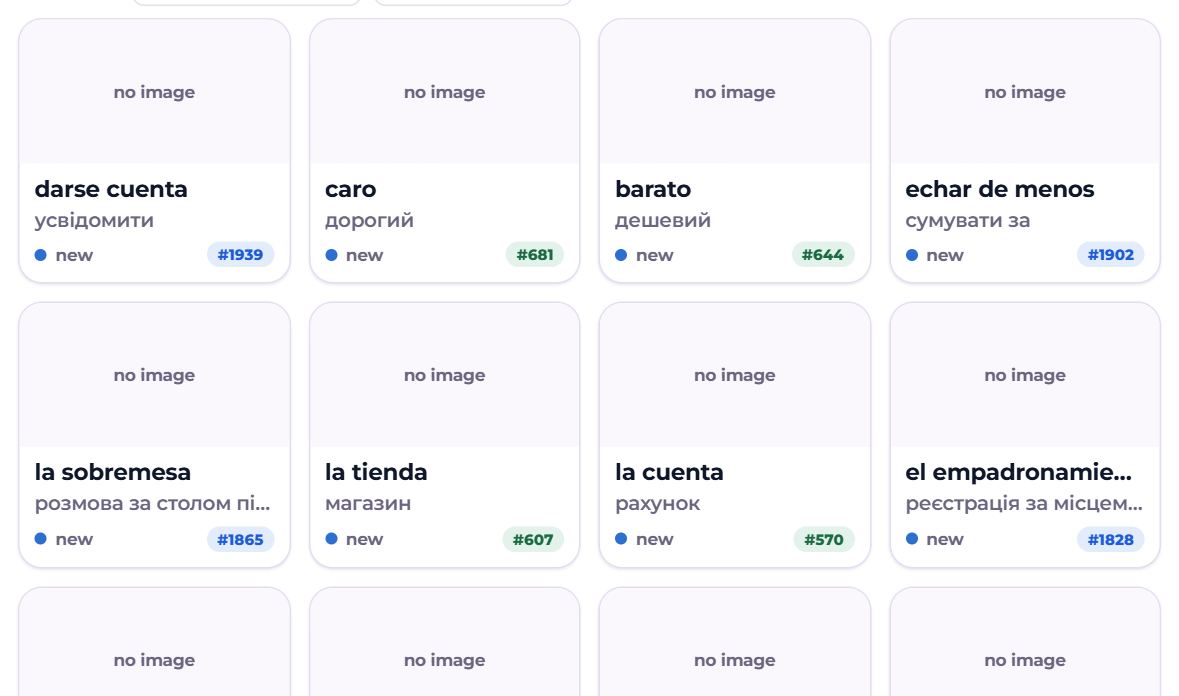
Tiles load 60 at a time — “Show more” at the bottom.
Picking words
- Click — pick one word (click again to drop it);
- Ctrl+click (⌘+click on a Mac) — add a word to the pick or take it out;
- Shift+click — pick everything between the previous one and this.
One word: editing
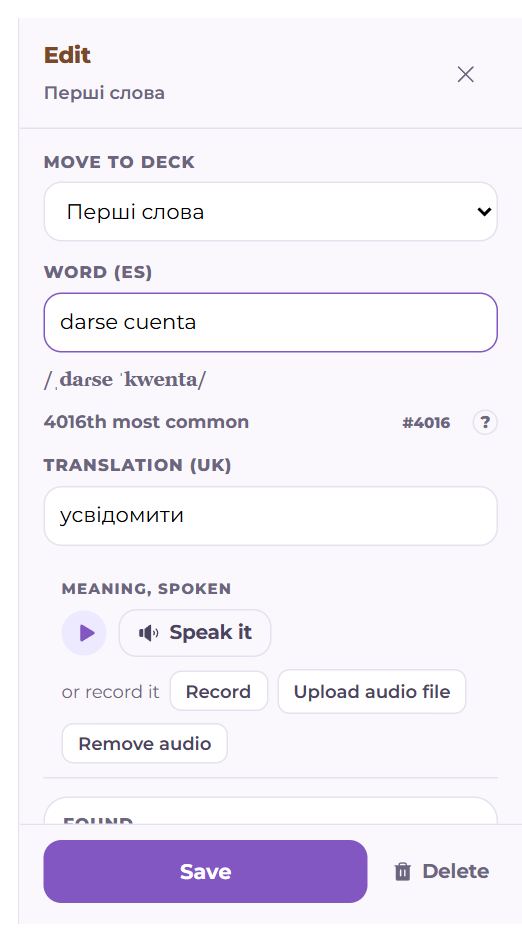
One picked word opens on the right in the same panel as a new one: deck, the word with its pronunciation and frequency, the translation, the sound of the word and of the meaning (synthesise, record your own voice, upload a file, remove), an example, a picture, the dictionary entry. Every field is described in the “Add a word” article. “Save” or “Delete” at the bottom.
Several words: bulk actions
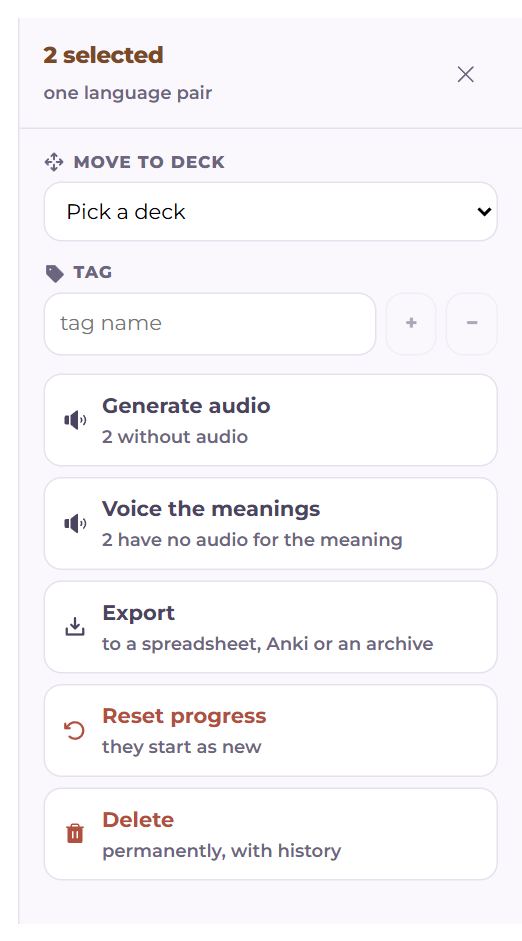
With two words or more picked, the panel shows how many and whether they are one language pair, and the actions:
- Move to deck — only to decks of the same language pair; words of different pairs are not moved together. There is no pause for single words: to pause words, move them into a paused deck (marked «paused» in the list);
- Tag — type a name; + adds the tag to all, − removes it;
- Generate audio and Voice the meanings — only for those without it; you can see how many;
- Export — to a spreadsheet, Anki or an archive;
- Reset progress — the words start as new, their review history goes (the app asks first);
- Delete — permanently, with the history (it asks too).
An action on “all loaded” can touch thousands of words: it runs in parts, but as one.
Table
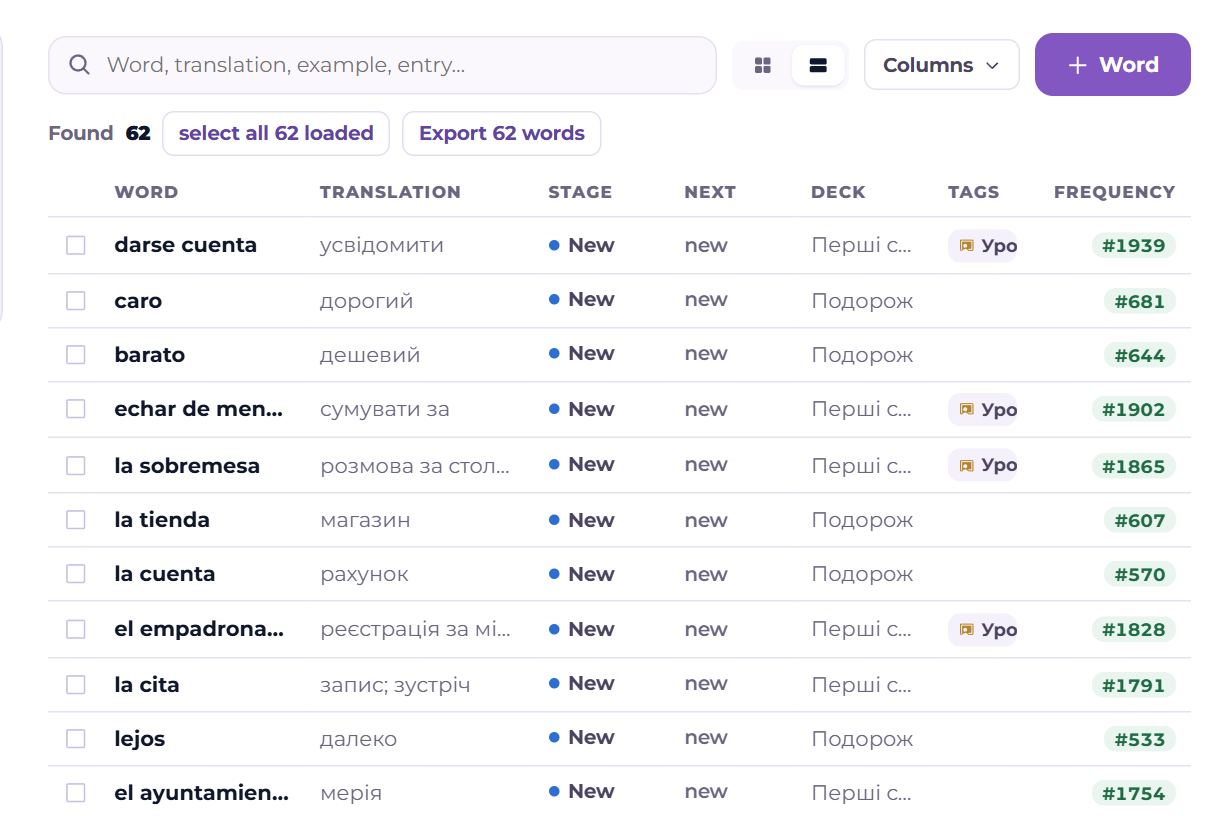
The table shows every word found as one list — you scroll it rather than load more. Click a column header to sort by it, again to reverse.
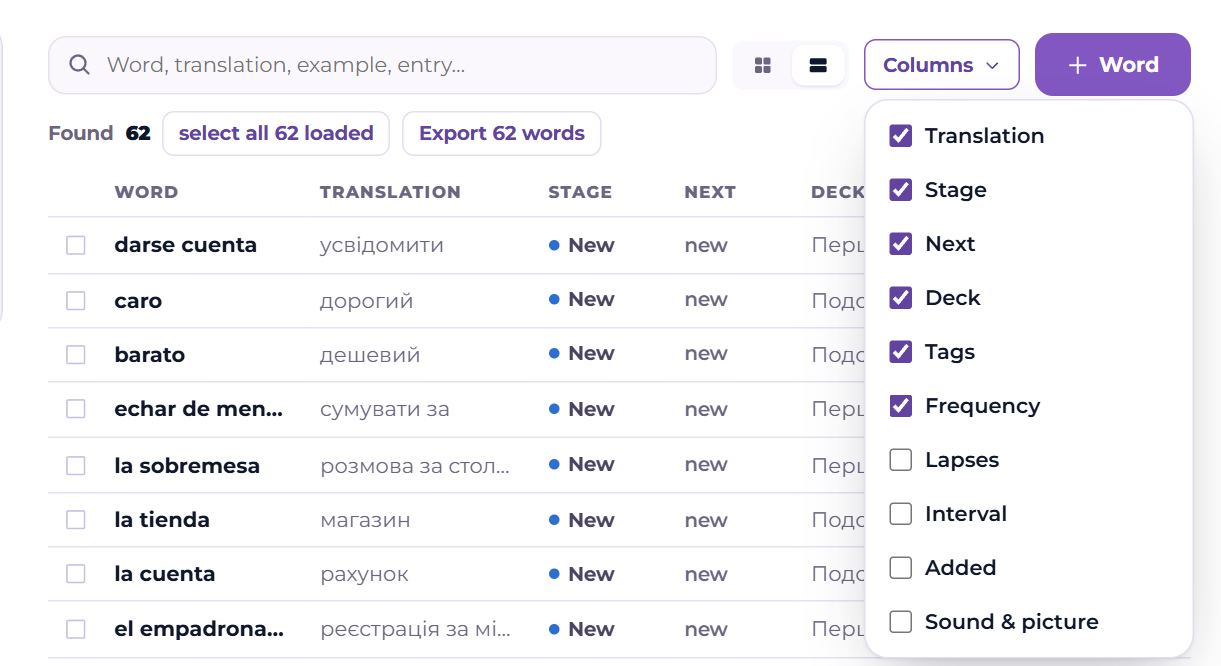
“Columns” — which to show: translation, stage, next review, deck, tags, frequency (on at first), and also lapses, interval, date added, sound & picture. This browser remembers the choice.
Dragging
- A tile or a row can be dragged onto a deck on the left to move the word there. If the word is picked together with others, all the picked ones move.
- Decks of another language pair are greyed while you drag — they cannot take it.
- A deck can be dragged up or down — the same order as on Words, and the order of new words.
On a phone
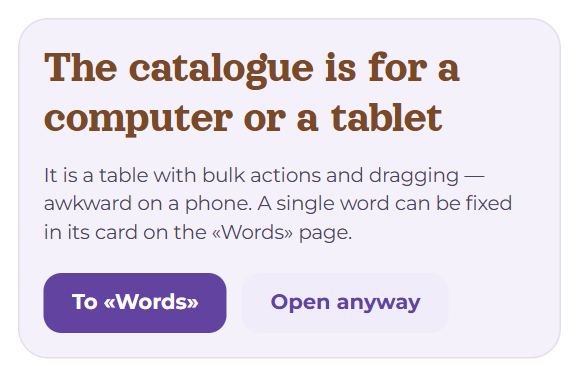
A table, bulk actions and dragging are awkward on a phone, so the catalogue first offers to go back to Words, where a single word is fixed in its card. “Open anyway” opens the catalogue.
Questions
- How is the catalogue different from Words?
- Words is one language, to see how it is going and choose what to learn. The catalogue is every language, to find and change many words at once.
- How do I give sound to every word without it?
- On the left, “Missing → no audio”, then “Voice all N” above the list.
- Does my teacher see my catalogue?
- Only if you gave access to that language pair (Settings → Teachers and students). Then the top of their view says whose catalogue it is and what they may do in it: only look, add, or also edit.