The lesson room
The room is the lesson’s own page: video and voice of both of you, a shared “stage” with a textbook, a text from the library or a board, and the lesson’s chat, from which words go straight into the student’s decks.
When the room opens
- A confirmed lesson’s room is open from 10 minutes before the start to 15 minutes after the scheduled end. Outside this window nobody gets in — not even by a direct link.
- The lesson starts when both are in: that is when it gets its number (“lesson 7”) and becomes “ongoing”. Whoever comes first simply waits.
- When the window closes, the lesson becomes “done” if both have been in the room, or “missed” if someone did not come. A missed lesson is not taken off the balance — unless the teacher decides otherwise.
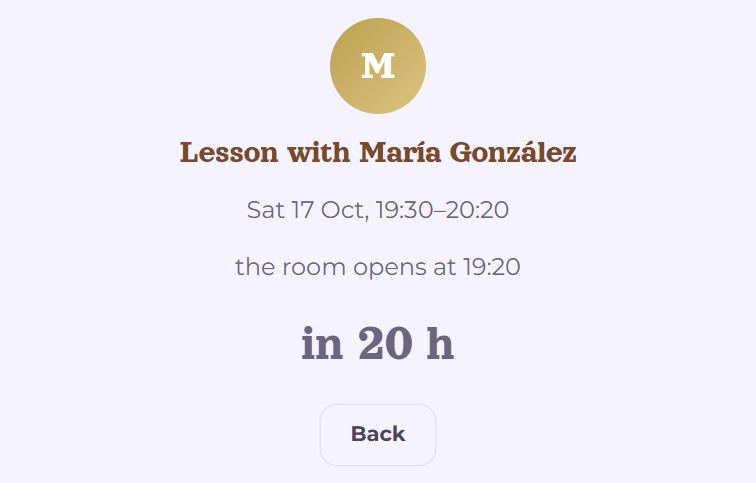
Open the room early and you see who the lesson is with, when it is, “the room opens at 19:20” and a countdown. The page can stay open: the moment the room opens, it moves into the lesson by itself.
How to get in
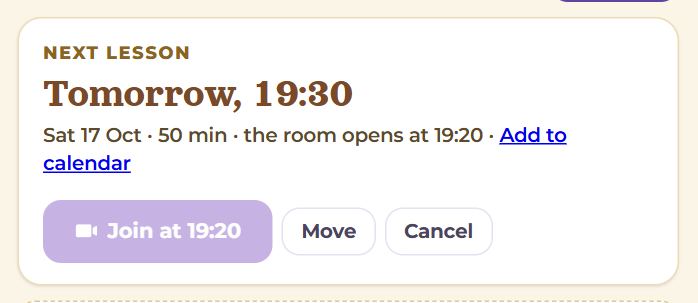
- The pair’s page, the “Ahead” block: the coming lesson and its button — inactive until the room opens and saying “Join at 19:20”, then “Enter the lesson”.
- The strip at the top of any page: half an hour before — “Lesson with María in 30 min”; once the room opens — “Lesson with María at 19:30 — the room is open” and “Enter the lesson”.
- The lesson card in the schedule (tap the lesson in the list or on the week).
- The link in a reminder — mail, Telegram, push, as you set them.
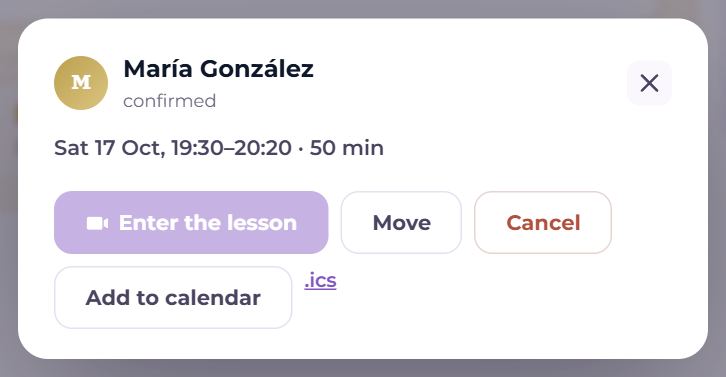
The browser asks for the camera and the microphone. Without a camera the lesson goes on with voice; without both, the chat remains: “No camera or microphone — the chat still works. Check the browser's permissions.”
The top strip

- The other side’s name and the clock: “37:56 left” to the scheduled end, then “+3:12” — how far the lesson runs over.
- Full screen — the square to the left of “Leave”.
- “Leave” and “Finish the lesson” — see “Leave or finish”.

A student’s strip also has “Seeing what the teacher sees” or the “Follow the teacher” button — see “Who leads”.
Video, voice, screen
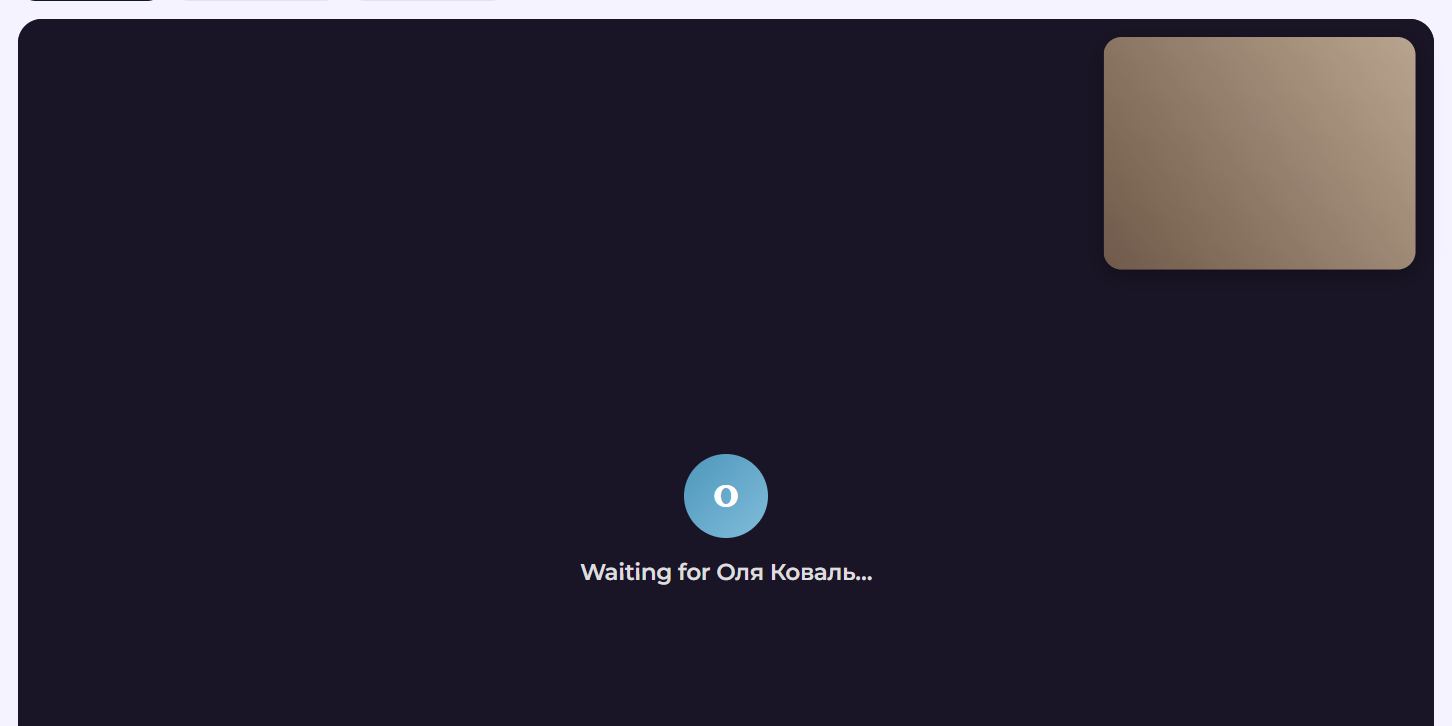
On the stage is the other side’s camera; yours is in the corner. While nobody is there it says “Waiting for Olya…”; if the person was in and left — “Olya has left the lesson — waiting”; while connecting — “Connecting…”. If the browser will not play sound without a touch, a “Turn the sound on” button appears on the stage.

The buttons under the stage, left to right:
- Microphone and Camera — off and on; a crossed icon means off.
- Share the screen — the browser asks what to show: a tab, a window or the whole screen. Your camera stays on; the other side gets the screen on the stage and your camera in the corner. For the other side to hear a video or a song, tick “Share tab audio” in the picker (on Windows, “Share system audio” for the whole screen); the sound goes along with your voice, and the microphone button still mutes only the microphone. To stop — the same button, or the browser’s own “Stop sharing” bar. Phones have no such button: phone browsers cannot share a screen.
- … in a floating window — the other side’s camera in a small window over all windows, with the microphone, the camera and “Stop sharing”. It opens by itself when you start sharing the screen, and in Chrome also when you switch to another tab mid-lesson.
- Screenshot to chat — a frame of a shared screen (yours or the other side’s) or the “Textbook” page with its marks, as a picture in the lesson’s chat. Only those: it never takes a camera, so with no shared screen and no textbook the button rests.
- Hide the chat / Show the chat — the stage takes the chat’s room; new messages are counted on the button. The choice is kept for the next lesson.
The stage: tabs

- Screen — the video (or the shared screen).
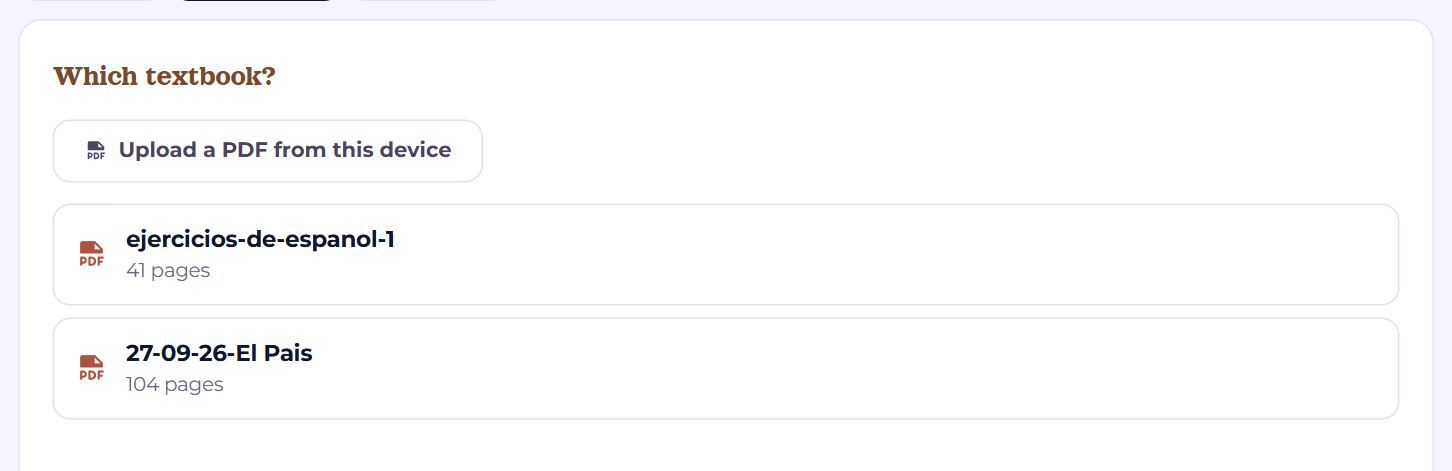
- Textbook — a PDF from the library in the lesson’s language: “Which textbook?”, a list and “Upload a PDF from this device” (up to 150 MB — the file becomes a library material that remembers its page). An open book is a shared sheet: both see the page and the marks. “Another textbook” goes back to the list.
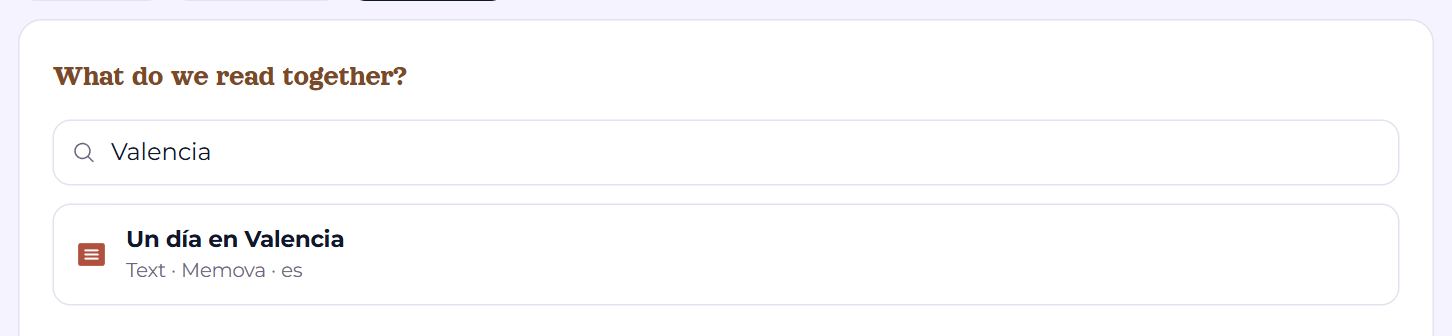
- Material — a text, video or song from the library in the lesson’s language: “What do we read together?” and a search by title or author. It opens the same reader as the library; the teacher’s chapter, selection and playback show for the student too.
- Board — only when the teacher has given the pair a link to their own board (Miro or another, https): the student’s page → ⋯ → Board (Miro). The board opens for both; the icon in the corner is “Open the board in a new tab”.
Who leads
The teacher leads: their tab, book, page, the text’s chapter — and what they do in the reader — appear for the student at once. While the student touches nothing, the strip says “Seeing what the teacher sees”. Once the student turns a page or opens something themselves, they keep looking at their own; the “Follow the teacher” button brings them back to where the teacher is now.
Words into decks
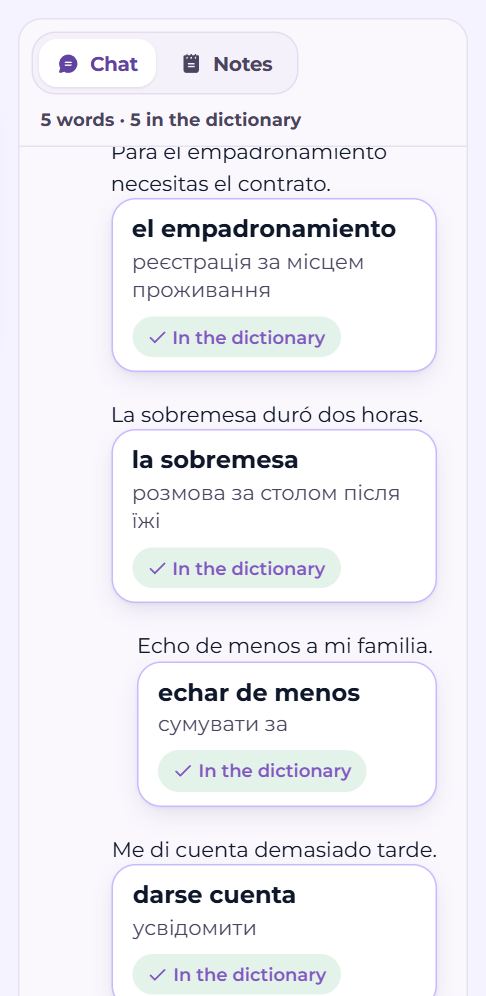
- Either side can send a word or phrase instead of a message: the switch at the left edge of the field. The line becomes a mini-card — the word, a translation and a picture; both can be corrected right on the card, and tapping the picture opens a choice of others. The small circle in a line’s corner turns it over: a message into a word, a card back into a message. A phrase fits too: the type gets smaller and it wraps onto several lines.
- Your own message can be deleted: the bin by it (on a computer when pointed at, on a phone after tapping the message), and one more tap — “Delete?”. It goes for both sides; a card the student already made from it stays.
- The microphone in the typing row (the teacher’s only) — “Say the word”: the word is spoken, not typed.
- The student sees it as a mini-card with (+) — “To dictionary”: the add-word panel, already filled in. A word already in the dictionary is green; its button opens the word’s card with its history and its own “edit”, right over the chat.
- In a textbook or a material a word can be selected: the teacher gets the same card for the student (“Give to student”), the student adds the word to their own deck.
Where the words land: in the student’s deck where words from this teacher’s lessons went last time; if there were none yet — the inbox deck, and failing that a new one, “Lessons · teacher’s name”. Each word gets the lesson’s tag (“Lesson 6 · María González”), and a word the student already has is not doubled — it only gets the tag. Above the chat there is a tally: “5 words · 5 in the dictionary · 2 learned”.
Before the next lesson the student sees these words on “My day” and on the pair’s page — “Before the lesson”, with a game on them.
Chat and notes
- Chat — a part of the pair’s shared chat: what is said in the lesson stays there after the call. The paper clip — “Attach a file”: a file or a photo of a page.
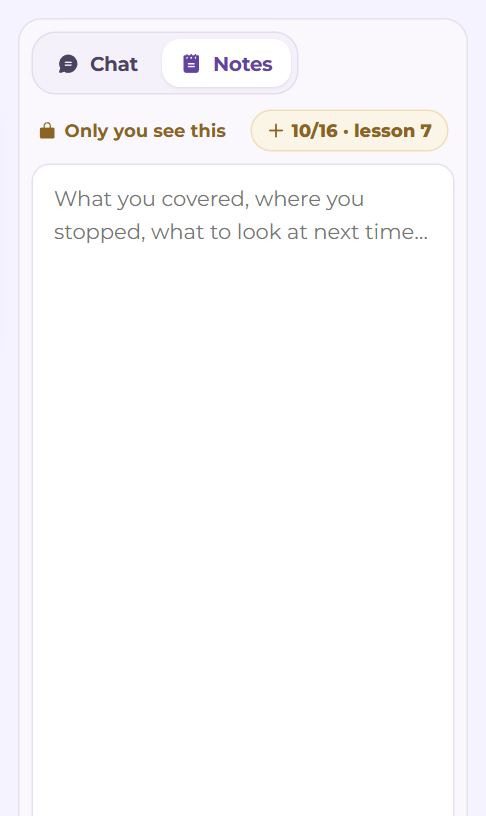
- Notes — your private note about the other side: “Only you see this”. The button with the date adds a line with today’s day and the lesson number (“16.10 · lesson 7”). It saves itself as you type.
Leave or finish
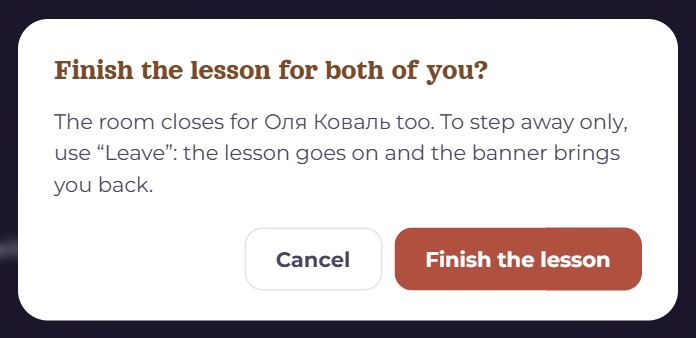
- “Leave” — only you go out, to the pair’s page; the lesson goes on until its time, and the other side stays in the room. To come back — the strip “A lesson with María is going on” → “Return”.
- “Finish the lesson” — the lesson ends for both and the room closes. It asks first: “Finish the lesson for both of you?”. If both have been in the room, the lesson is “done”; if not, “missed”. The strip across the app has the button too — “End”.
To step away for a minute — “Leave”, not “Finish the lesson”: a finished lesson cannot be opened again.
Coming back and reconnecting
- You can come back while the lesson’s window is open: the strip’s “Return”, the lesson card, the pair’s page, or simply reloading the page.
- The video goes straight between your two browsers. If the network blinks, the connection comes back by itself; if the other side is gone for more than 20 seconds, the call pauses until they return, and the stage says “… has left the lesson — waiting” again.
- The same lesson in a second tab takes the seat; the first one says “This lesson is open in another tab.”.
- To check the connection ahead of time — the pair’s page → ⋯ → Test call: “A call to check the connection: not counted, not paid”.
After the lesson
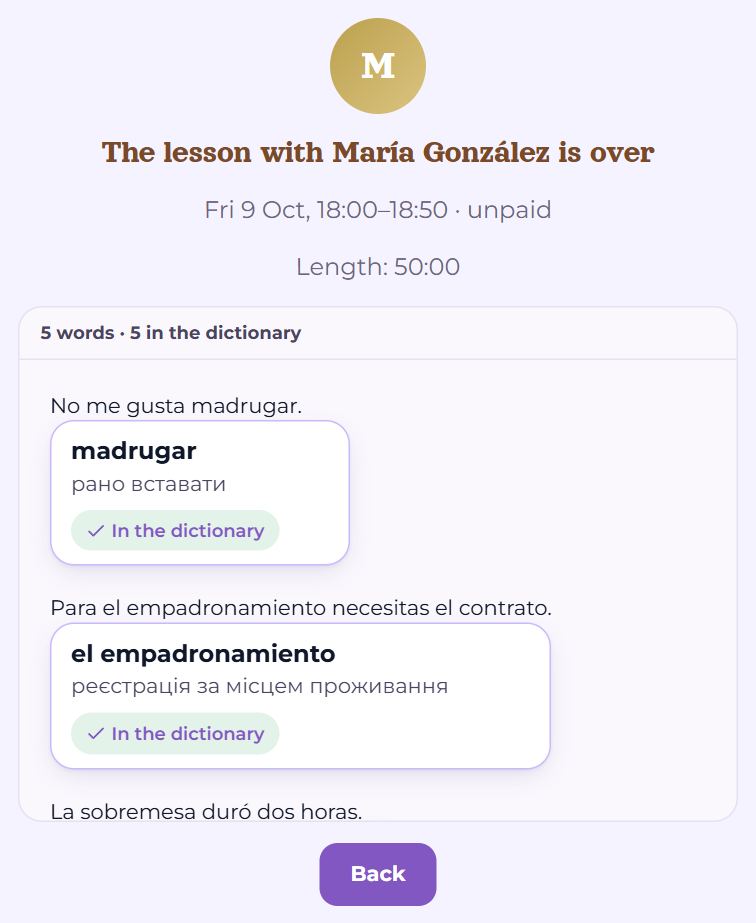
The room turns into a summary: “The lesson with María is over” (or “The lesson with María did not take place”), the date and time, a “paid” or “unpaid” mark, “Length: 50:00” and the whole lesson’s chat with its words. The camera goes off at once. This page opens from the pair’s past lessons — “Open”.
On a phone
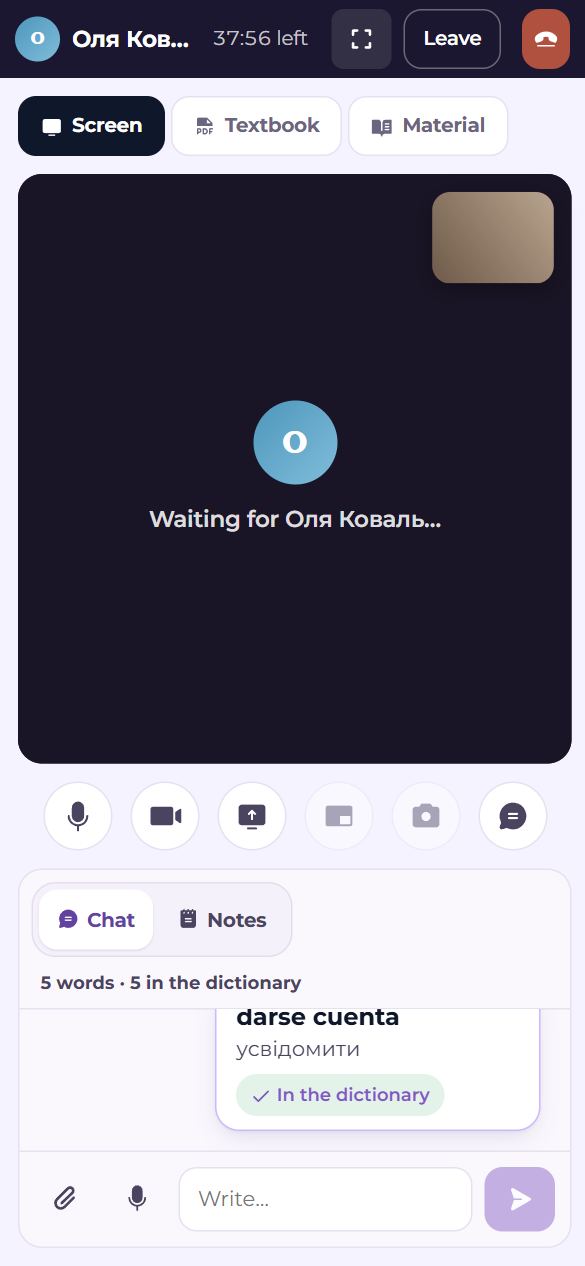
- Everything in one column: the tabs, the stage, the buttons, and the chat under them.
- On “Textbook”, “Material” and “Board” the videos shrink into a strip above the stage, and there is no chat — the page needs the room.
- The top strip has icons only and a shortened name; there is no screen sharing.
Questions
- Does the student see the same as the teacher?
- Almost: the same stage, but without the “Make it a word” button or the microphone for a word, and with “Follow the teacher” instead. Both have “Finish the lesson”.
- I am a few minutes late — is the lesson lost?
- No. The room is open until 15 minutes after the scheduled end; the lesson starts when both of you are in.
- Is the lesson recorded?
- No. Only the chat, files, screenshots and words remain.
- There is no sound.
- Press “Turn the sound on” if the button is there; check that the other side’s microphone is not off, and the browser’s permissions for the site.